Appearance without a value or communication
A screen never shows a value it does not have. While a value is awaited, when it is bad and when communication is lost, objects change their look so that the operator does not mistake an old or missing value for a live one. The settings are project settings: click an empty part of the page and look under Project.
Before you begin
- A page with an object bound to a signal is open in the screen editor.
Steps
1. Set the waiting appearance
When a page opens, its values arrive within a moment. Until then the objects wait:
| Setting | Values |
|---|---|
| Wait timeout | 1–120 s, default 10 s |
| Waiting style | Dimmed + … (default: grey colors, … instead of the value), Design appearance (design colors, … instead of the value), Mark only (design colors and a small … mark at the top right) |
| Invalid color | Color used for bad values by color bindings that define none of their own |
| Show unknown mark (?) | The ? mark at the top right of objects without a value after the timeout (on by default) |
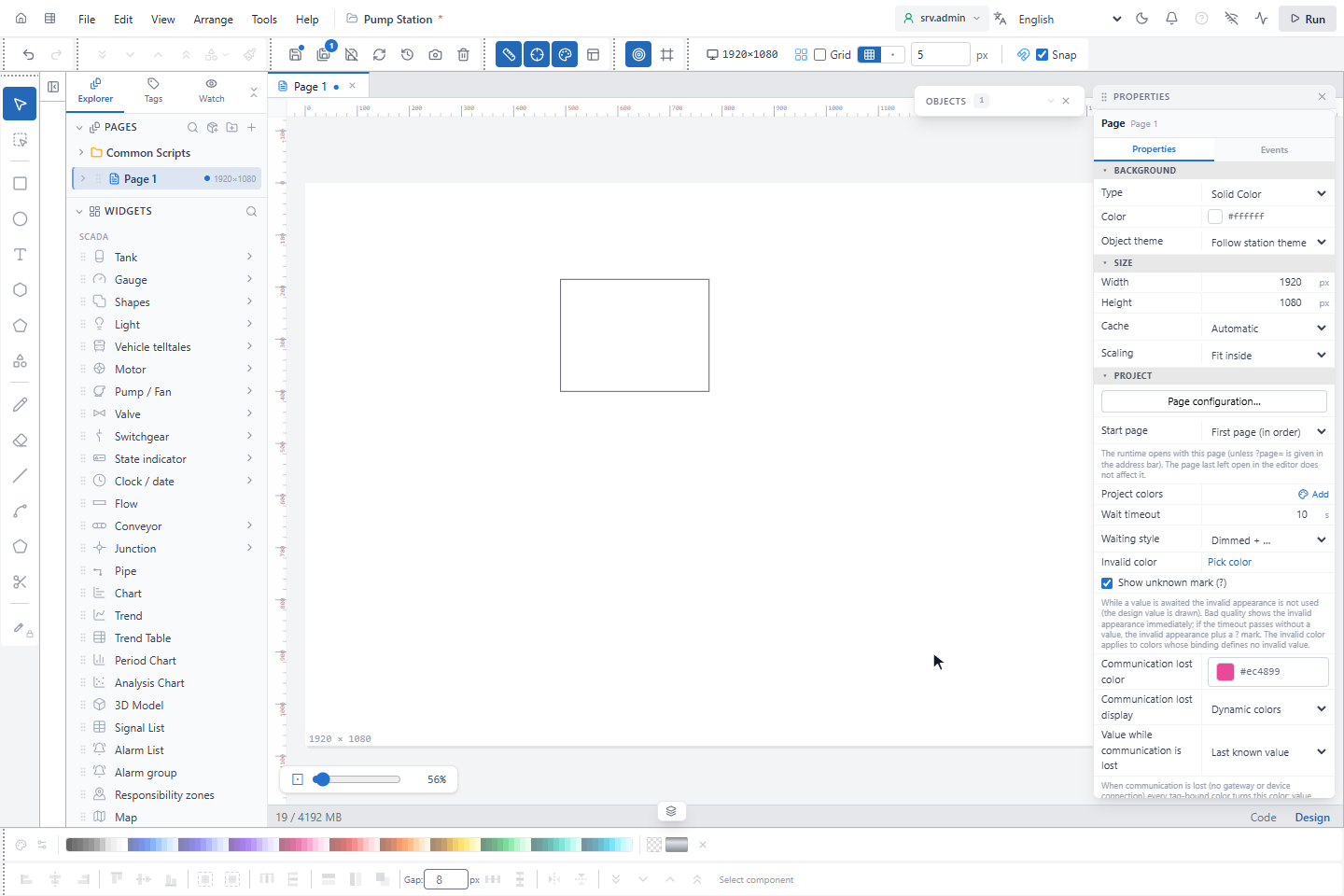
What the operator sees:
| Situation | Appearance |
|---|---|
| Waiting for the first value | Waiting style; blinking, turning and flow stop; numbers, levels and needles are not drawn |
| No value after Wait timeout | ? instead of the value and the ? mark; bindings use their Unavailable / Bad output |
| Bad value | At once the Unavailable / Bad output, or Invalid color for colors |
| Manual value (M) | A valid value, drawn normally with the M badge |
A missing or bad value does not look like a valid 0. While the page runs, an object whose signal has no value or a bad value is drawn as follows, unless a row above already gives it an appearance:
- A color binding with no Unavailable / Bad output, in a project with no Invalid color, draws neutral grey instead of its color for 0.
- A layer bound to a signal, or a symbol whose state is bound to a signal, turns grey. Without a value it also fades and
shows the
?mark. With a bad value it shows the last value in grey.
This does not apply while waiting, to a binding that handles the case itself (an expression that reads null,
quality or .status), or to a signal that has lost communication and still holds a last value, which follows the next
step. A valid 0 or false draws normally.
2. Set the communication-lost appearance
When the server connection or the connection to the device is lost, the values stop changing.
| Setting | Values |
|---|---|
| Communication lost color | Default pink #ec4899 |
| Communication lost display | Dynamic colors (every color bound to a signal turns the communication-lost color; default), Border (colors stay, a frame in that color), Color + frame |
| Value while communication is lost | Last known value (default) or Unknown (?) |
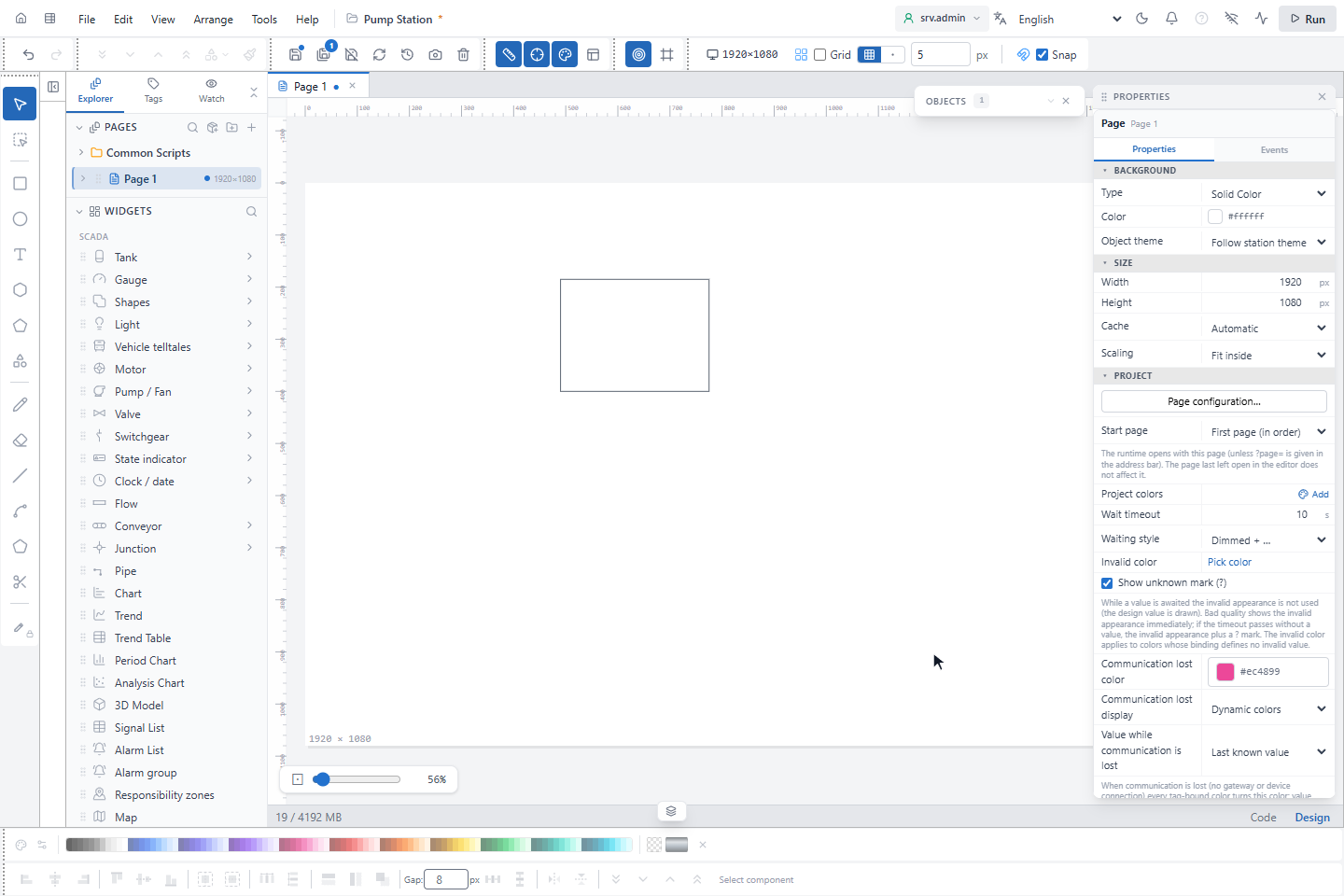
Bad and manual values do not turn the communication-lost color, so the three states stay apart. Bindings that show
the communication or equipment state themselves (.status, .quality) keep their colors. On the runtime screen,
while objects of the page have lost communication, a dot appears on the handle of the control rail, and a button on the
rail switches between last known values and ?; its tooltip shows the current view, for example Showing last known
values.
Each object has its own Communication lost color: Project color (default) or Custom color. Stale values are always marked.
3. Preview communication loss
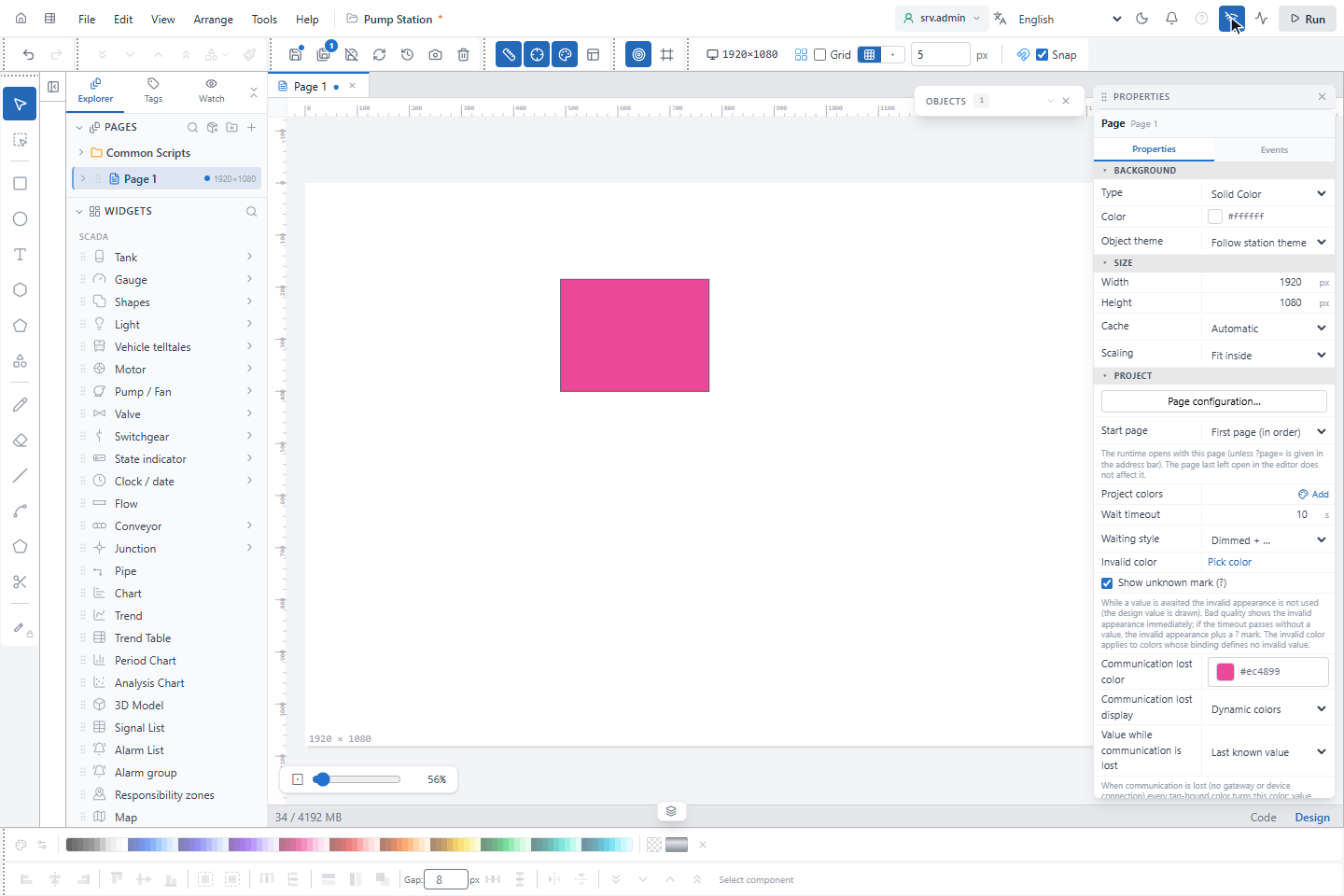
Click Simulate communication loss in the toolbar: objects bound to signals are drawn as if communication were lost. Click it again to end the preview; nothing is saved.
Device and value badges
| Badge | Where | Meaning |
|---|---|---|
| F red, C orange, S yellow, M blue | Bottom left of gauges, motors and other equipment with Device diagnostics (NE 107) | Failure, Function check, Out of specification, Maintenance required of the device (NE 107) |
| Filled M | Top left | Manual value entered in SCADA |
| Outlined M | Top left | Manual value at the field device |
| Dashed S | Top left | Simulated value |
Device diagnostics (NE 107) takes the letter, the name or a number (1 F, 2 C, 3 M, 4 S); 0 or empty shows no badge. When several apply, F comes before C, M and S.
Good to know
- The editor does not evaluate bindings, so
…,?and the dimming appear only on the runtime screen and in a test run. - Switches, lists, sliders and input boxes stay usable while waiting.
- A signal without a value raises no alarm.