Layouts
A layout holds objects that several pages share, such as a header with the plant name, a navigation bar or an alarm bar. You draw them once; every page that uses the layout shows them. A project has one Global Layout for all pages and any number of named layouts.
Before you begin
- A project is open in the screen editor.
Steps
1. Edit the global layout
In the LAYOUT section of the explorer, click Global Layout. A violet bar Editing global layout opens above the page, and the layout is edited on its own. Draw the shared objects, here a header with the text PUMP STATION.
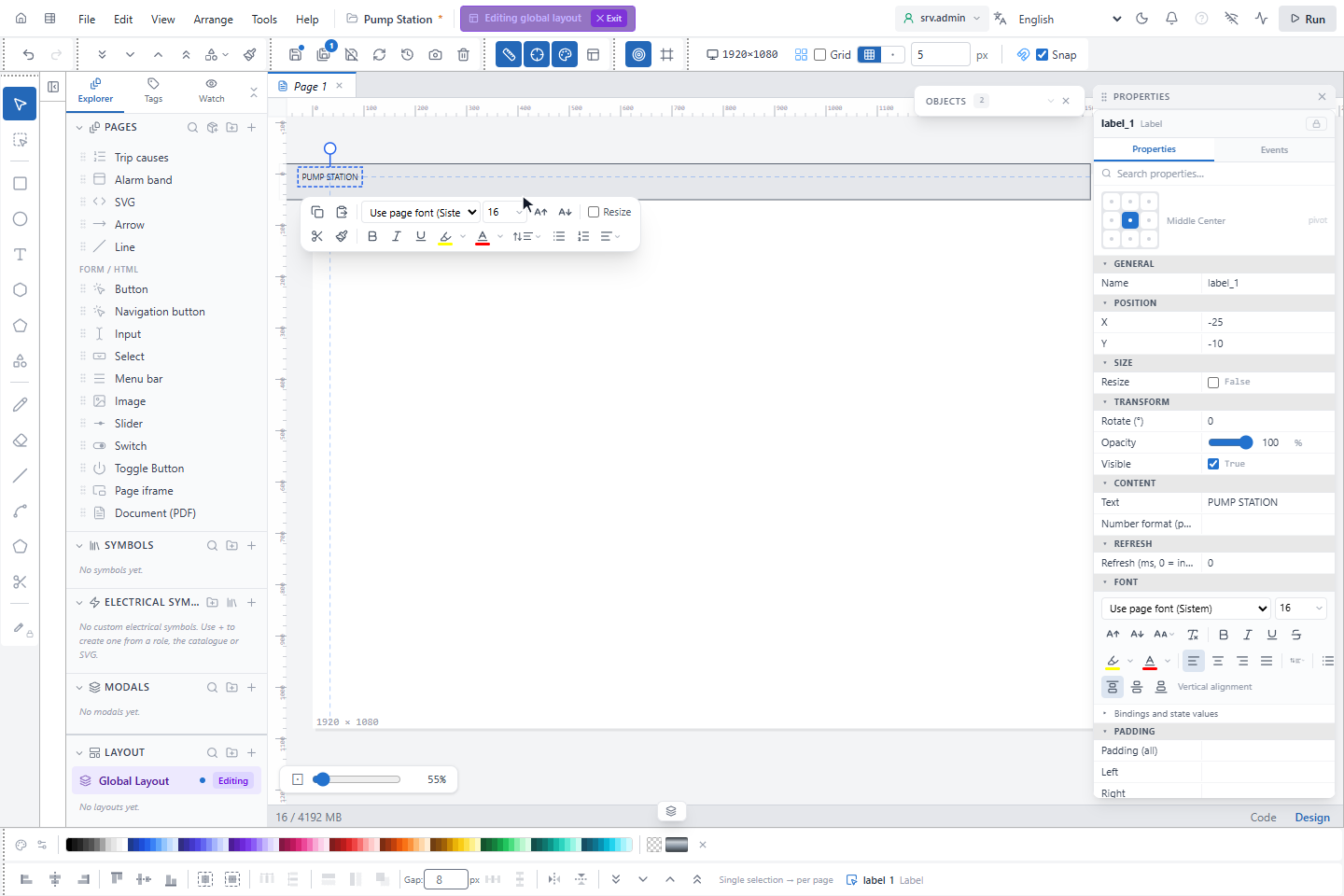
Layout objects are ordinary objects: they can be bound to signals and have click actions.
2. Back to the page
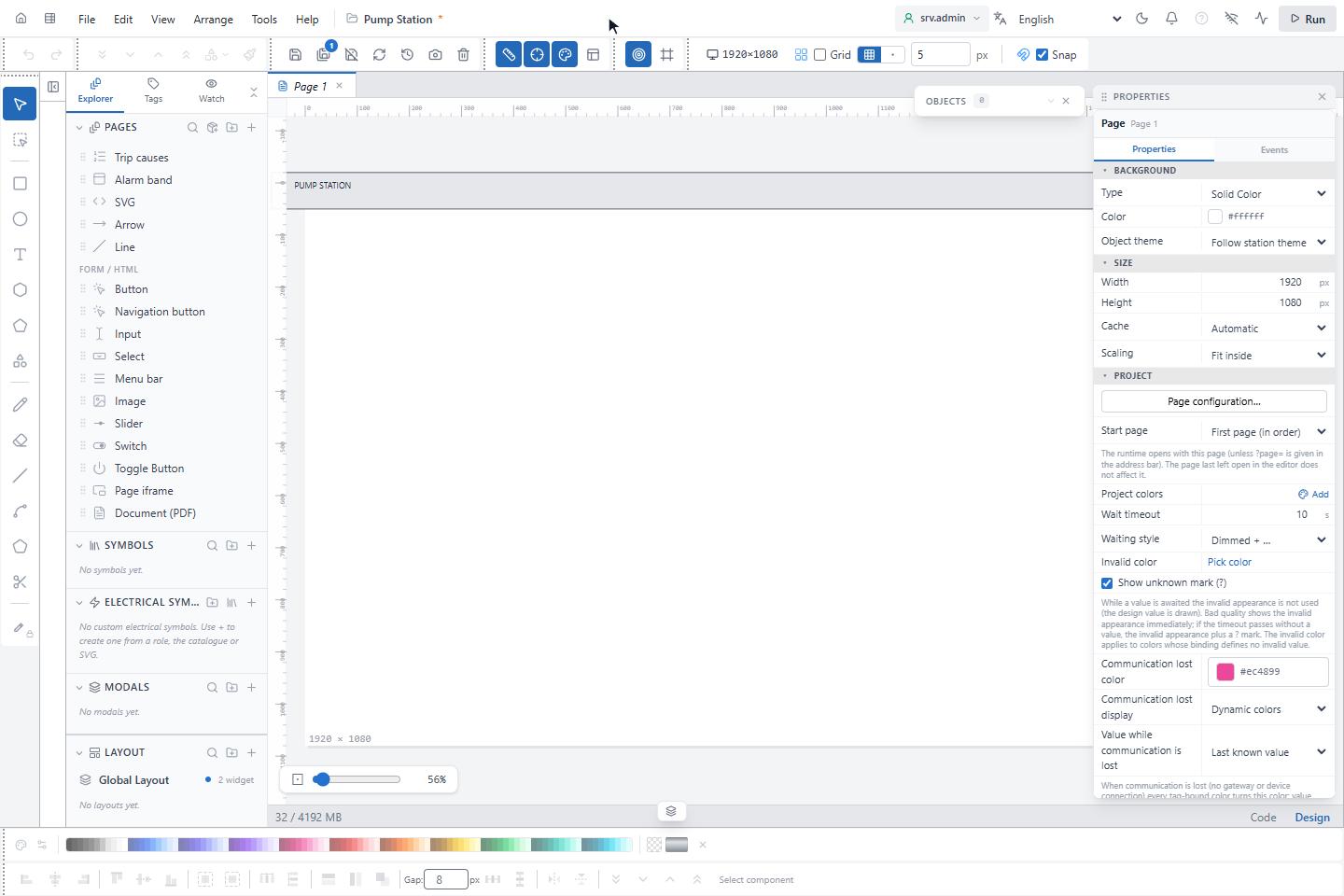
Click ✕ Exit. The page shows the layout objects under its own objects; they cannot be selected while you edit the page. Dim layout in the toolbar draws them faint.
3. Add a named layout
Click + (Add new layout) in the LAYOUT section, type a name, here Alarm bar, and press Enter. Click the layout to edit it and draw its objects; the bar shows Alarm bar Editing.
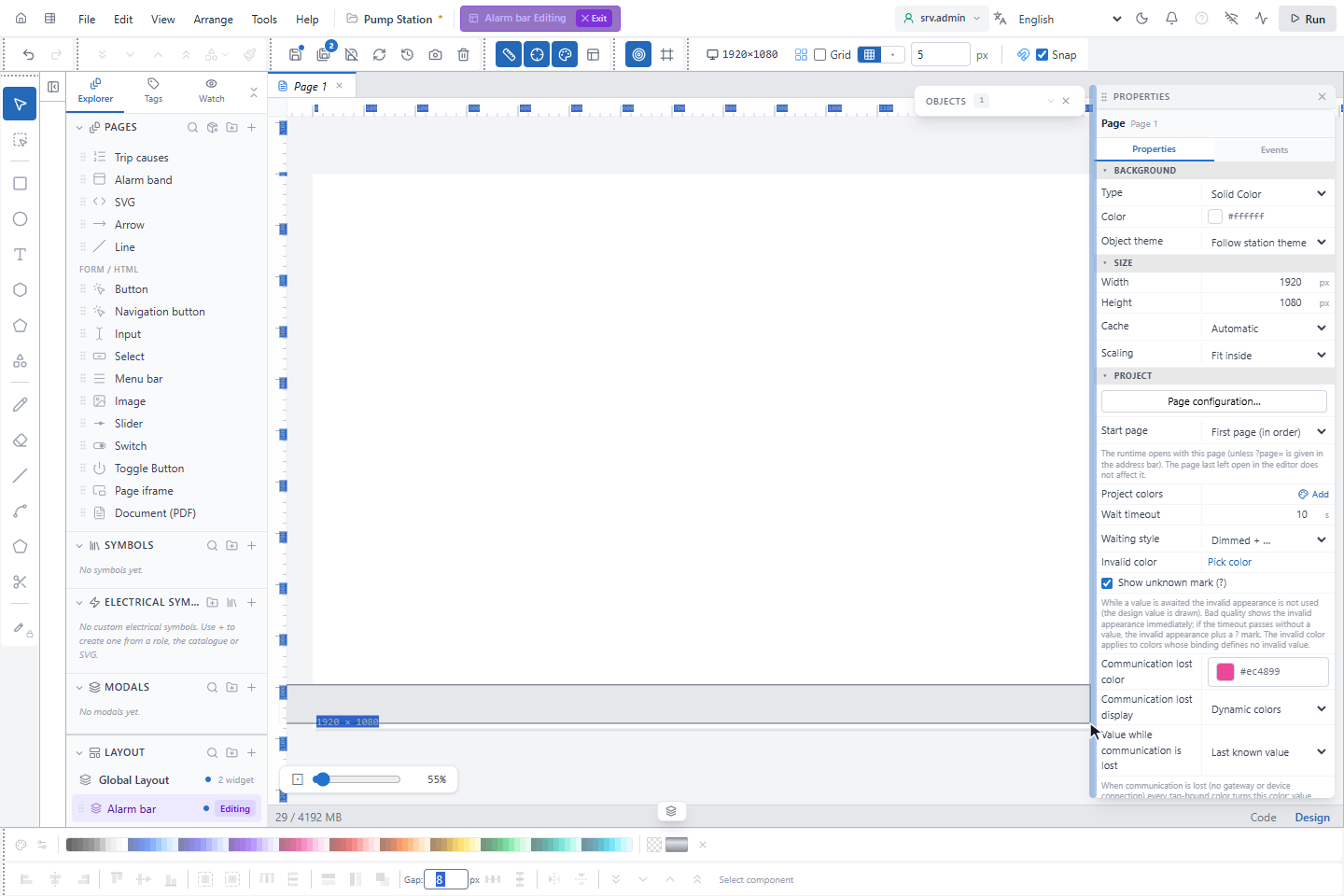
Named layouts can be renamed with a double-click or the pencil, deleted with the trash button, and sorted into folders.
4. Assign the layout to a page
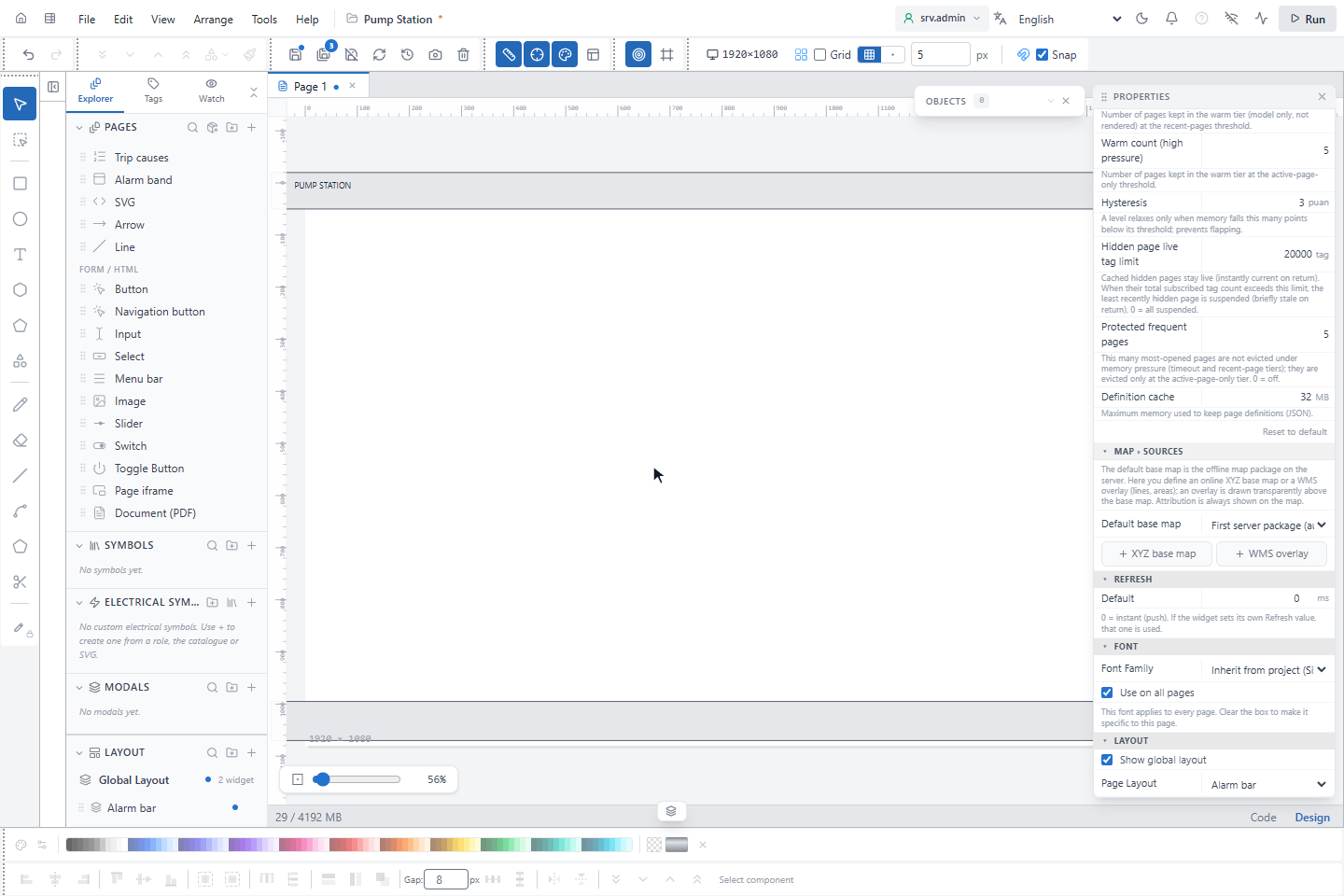
Click an empty part of the page. In the LAYOUT group of the page properties choose the layout under Page Layout, here Alarm bar. Show global layout switches the global layout on or off for this page.
How layouts are drawn
- On the runtime screen the layouts are drawn above the page objects: the page first, then the global layout, then the named layout.
- A page shows at most two layouts: the global layout and one named layout.
- Layout objects take part in the test run and on the runtime screen like page objects: their values update and their click actions work.
- Deleting a named layout removes it from the pages that used it.
Good to know
- Keep layout objects off the area the page uses, since they cover it.