Run the screen and watch a value
In this tutorial you add an input box next to the tank, so that you can change Level_Setpoint from the screen. You run
the page in the screen editor, type a new value and watch the tank follow it. Then you open the same page on the runtime
screen, the screen that operators use.
Before you begin
- The first page has a tank bound to
Level_Setpoint, and the project is running. See Your first screen. - You are signed in as root in this browser, as in the previous tutorials. The runtime screen you open from the home page in step 5 takes over that session.
Steps
1. Add an input box
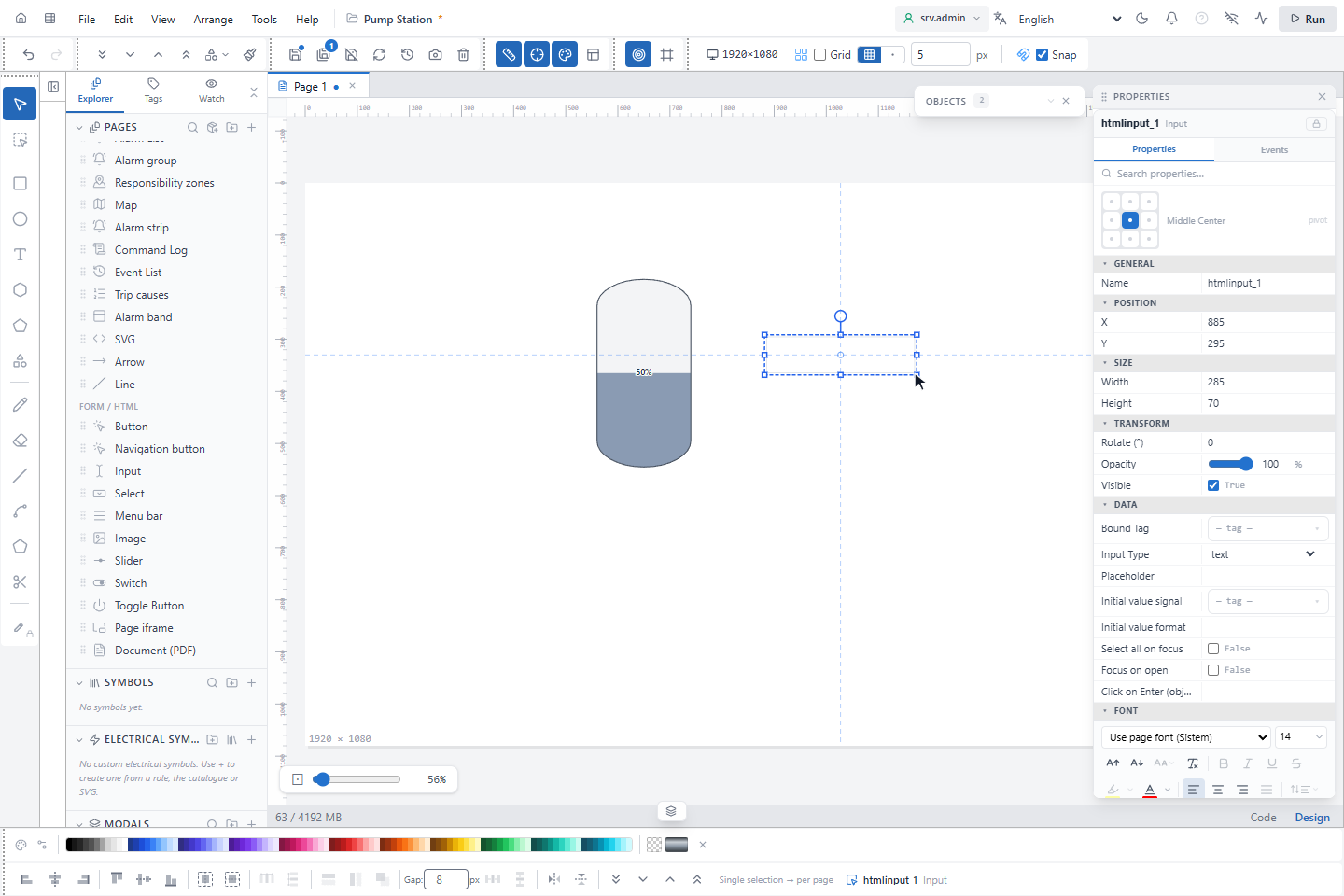
In the left panel, under FORM / HTML, click Input, and draw a rectangle on the page next to the tank. The new
object is called htmlinput_1, and its properties appear in the PROPERTIES panel.
2. Bind it to the signal
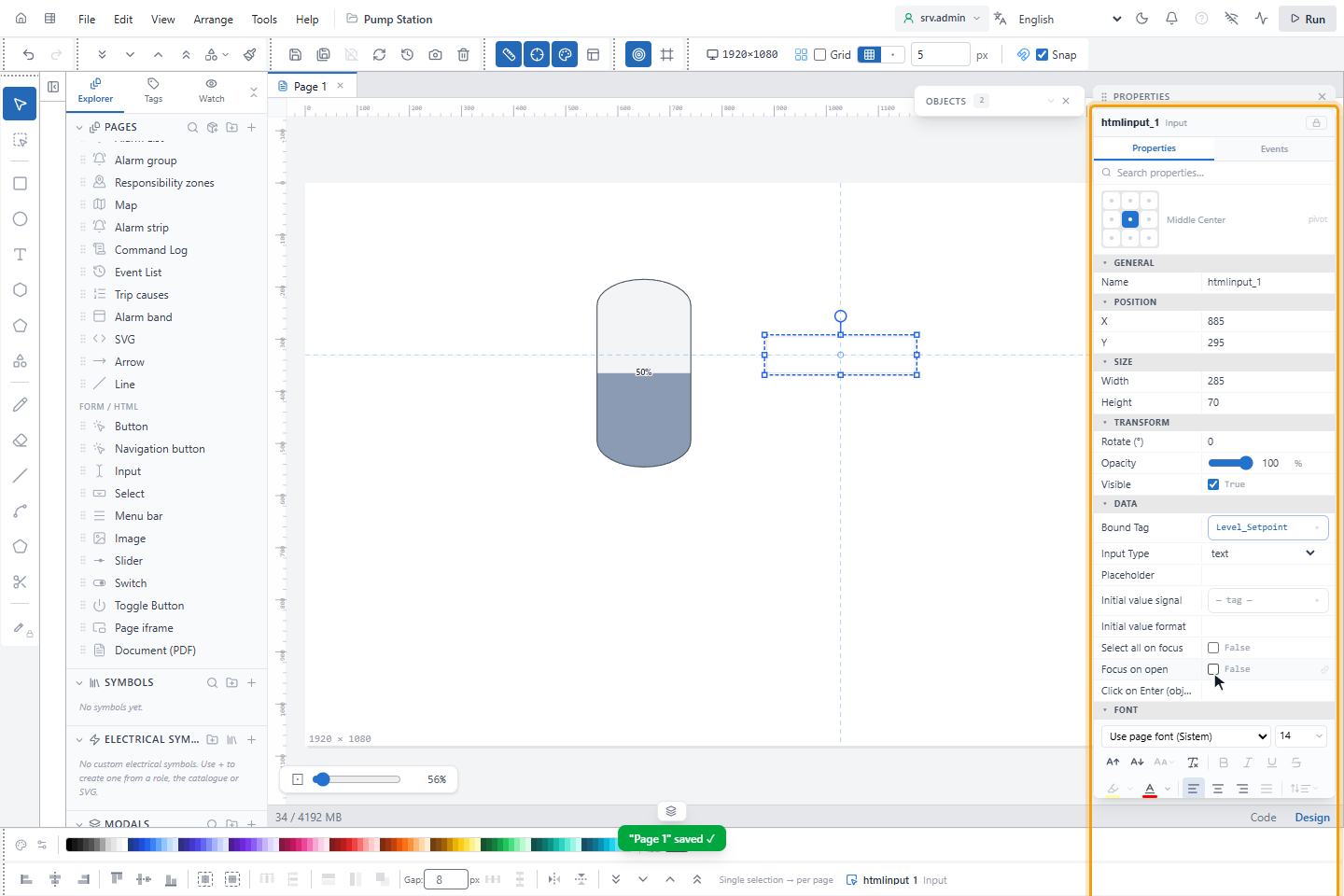
In PROPERTIES, under DATA, click — tag — next to Bound Tag. The
Signal picker opens. Click Level_Setpoint and click Bind. Bound Tag now shows Level_Setpoint. Leave Input Type at text: YTCC converts the number you type into the signal's type.
Press Ctrl+S to save the page.
3. Run the page
Click Run at the right end of the toolbar. The editor hides its panels and shows the page as it runs, with live
values. The tank shows 0%. Stop at the top right, or Esc, returns to the editor.
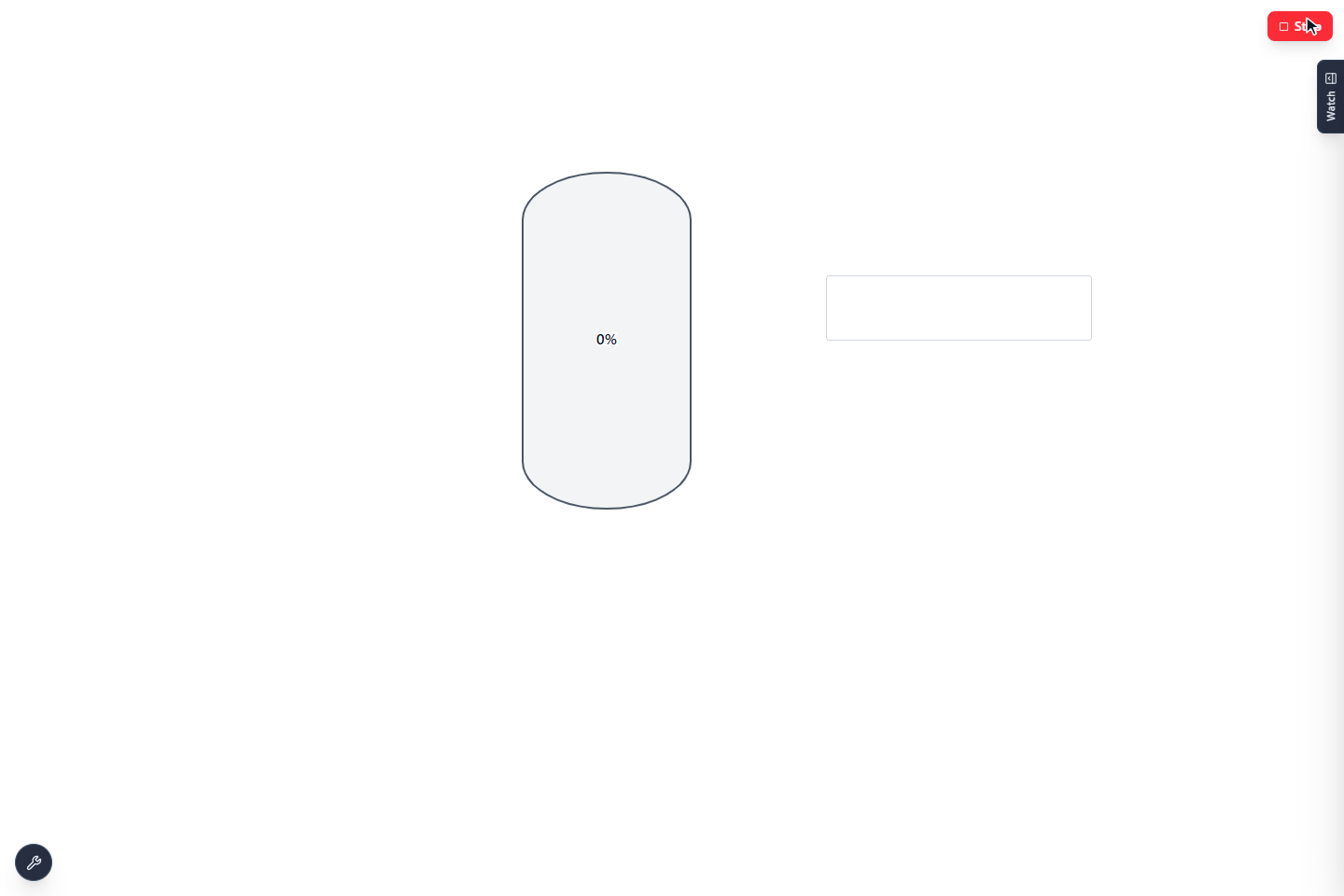
Run is a test run in the editor. It is not the runtime screen; you open that in step 5.
4. Change the value
Click the input box, type 85 and press Enter. Command applied appears at the bottom right, and the tank
rises to 85%.
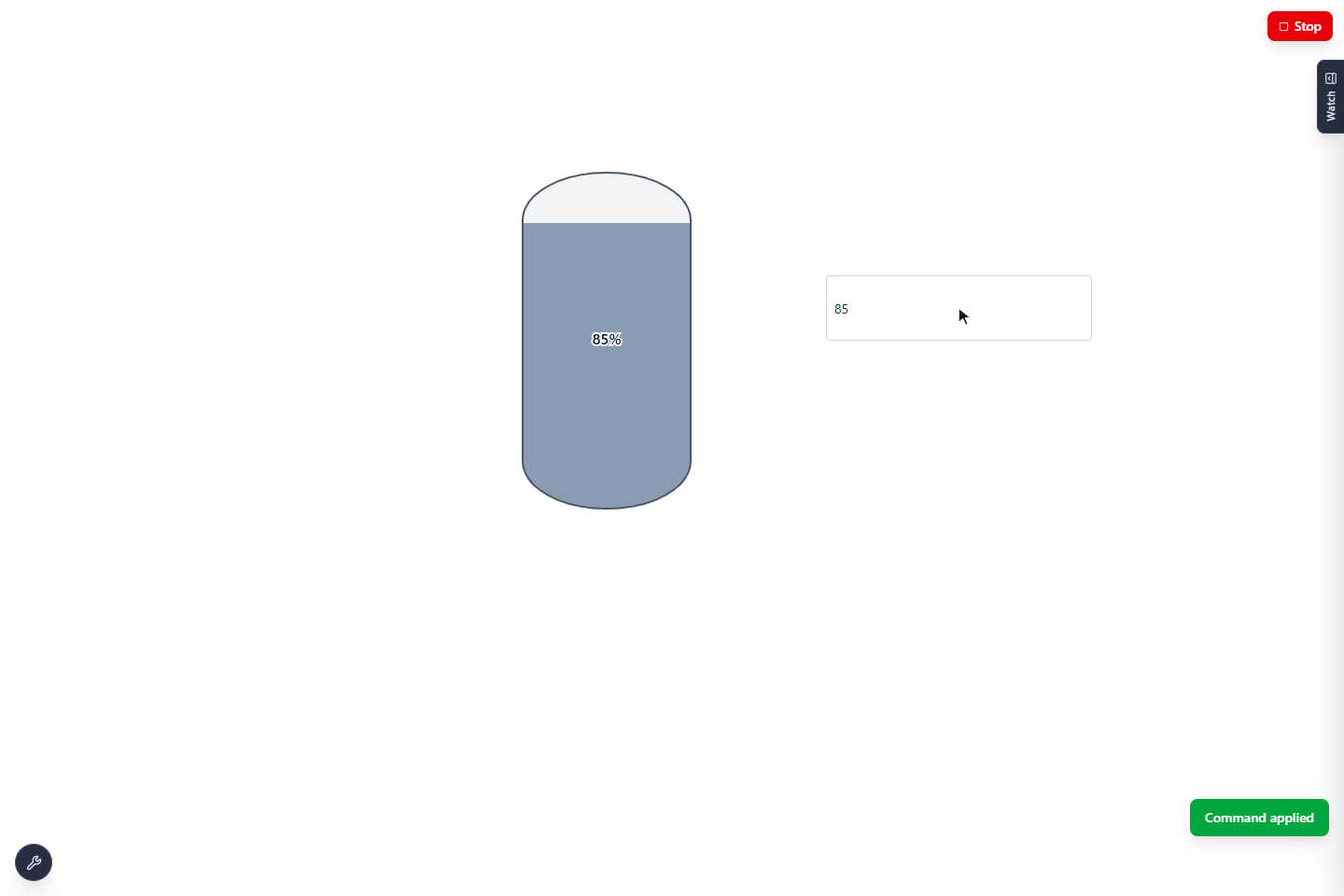
Level_Setpoint is an internal signal, so the value is not sent to a device and YTCC does not ask you to confirm it. For a value that goes
to a device, see Send commands.
5. Watch it on the runtime screen
Press Esc and click the home button at the left end of the toolbar. On the home page, right-click the project
and choose Runtime. The runtime screen opens in a new browser tab and shows the page with the tank at 85%.
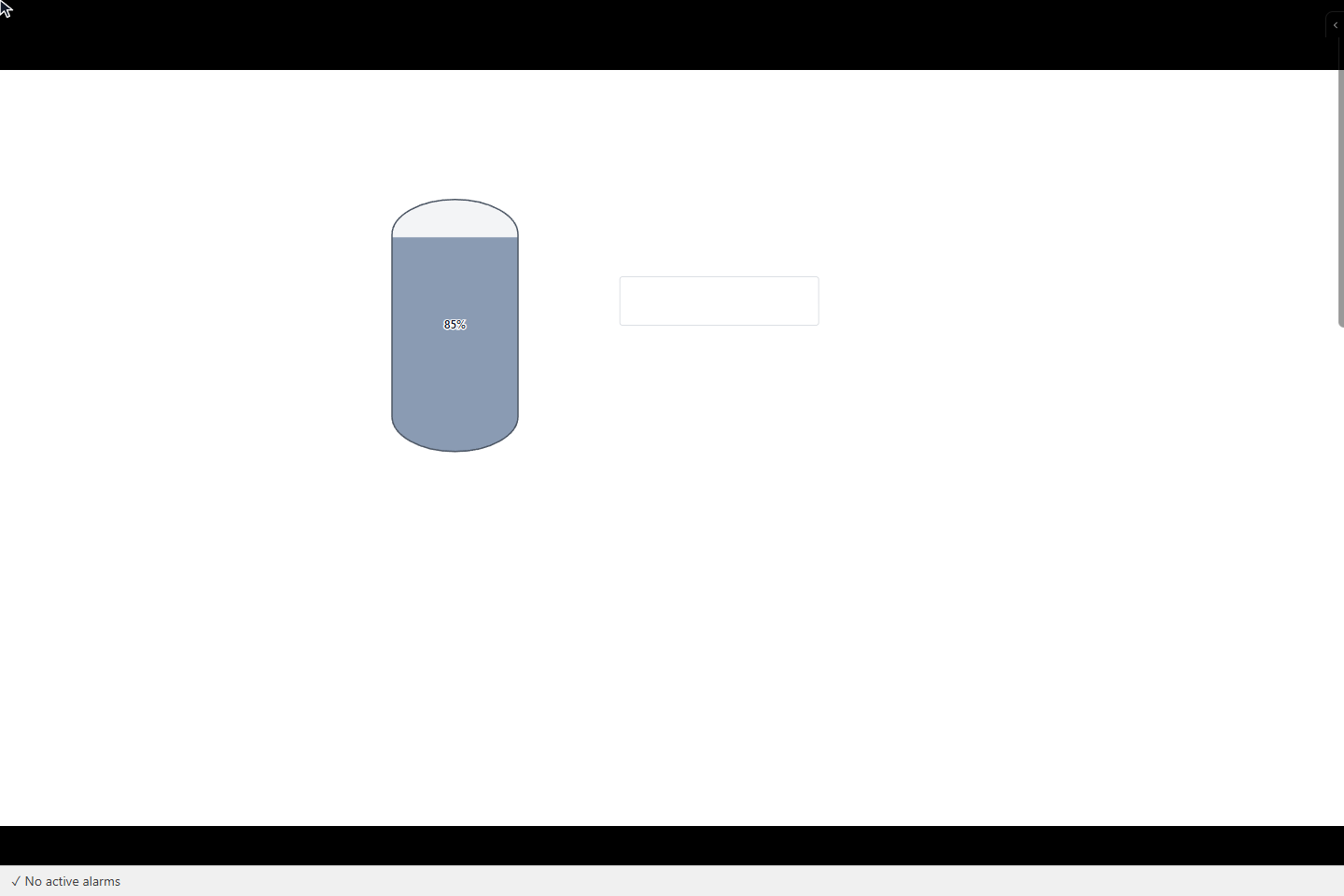
The runtime screen opens in English unless a language is set; for the order in which YTCC chooses the language, see Work areas. The alarm bar shows No active alarms. The texts of your own pages are not affected. When users sign in, each user can see the runtime screen in their own language; see Turn on authentication.
Result
You changed a signal from the screen and watched the tank follow it, both in the editor and on the runtime screen.
Next steps
- A tour of the runtime screen explains the parts of the runtime screen.
- Turn on sign-in and set up accounts turns on user sign-in and creates an operator account.