Alarm areas
Areas divide a plant into a tree, for example plant, plant/pumps and plant/tanks. A signal or a device belongs to
one area. Alarm lists, alarm history and the command log can show a single area with its sub-areas, and YTCC counts the
alarms of every area. This page builds a small tree and assigns two signals to it.
Areas are not responsibility zones: zones decide who may control what, areas only group signals.
Before you begin
- The signals exist and have been applied. This page uses
Pump1_RunningandTank1_Level.
Steps
1. Add areas by path
In the configuration editor, open Areas and zones in the activity bar (Alt+7) and then
Areas. Click New row, type the Path of the area and click Add. The path lists the parent areas and the
area itself, separated by /. Add plant, plant/pumps and plant/tanks.
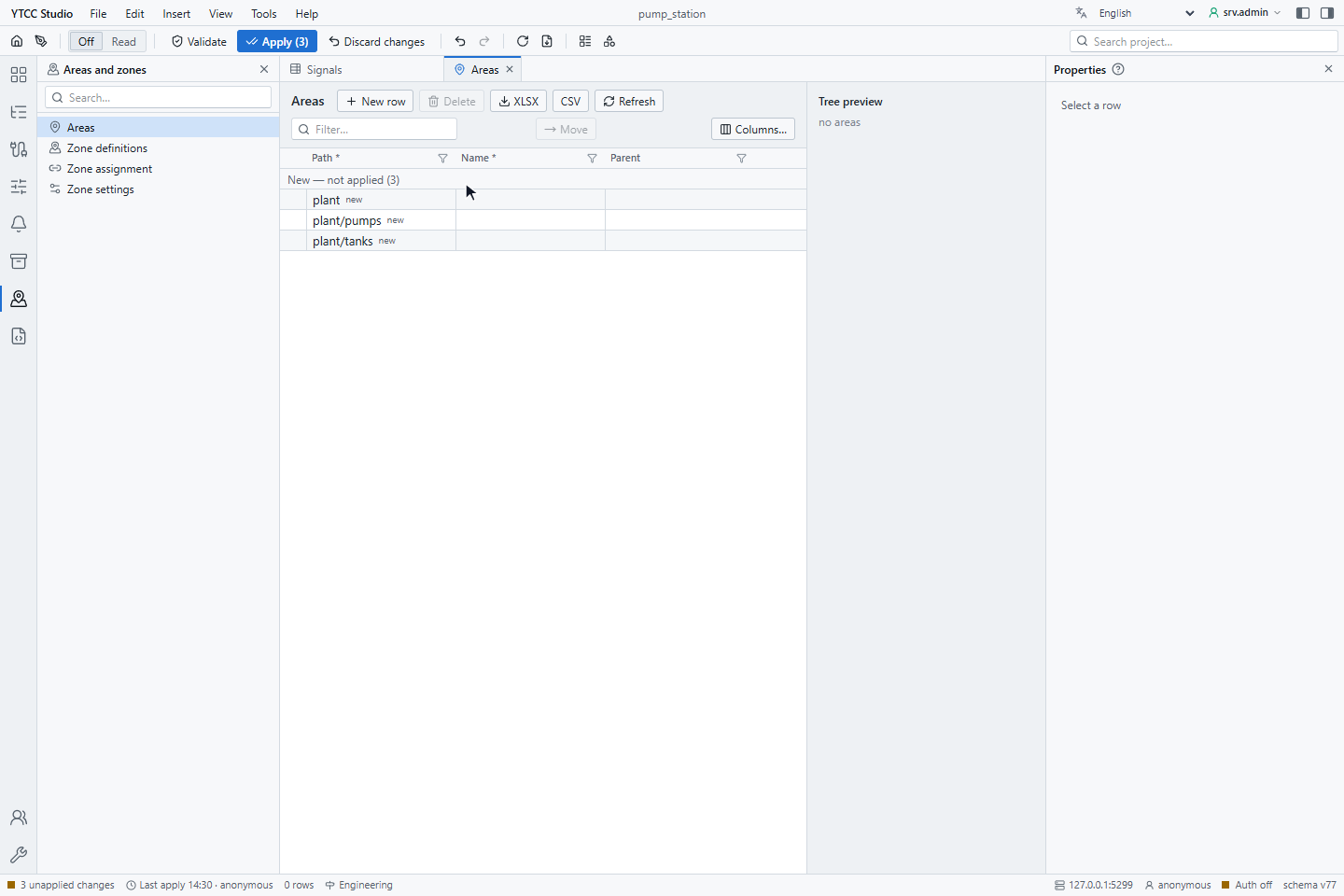
The Name is the last part of the path and the Parent is the rest. A parent must already exist or be added in the same change. Areas are saved when you apply.
2. Apply and check the tree
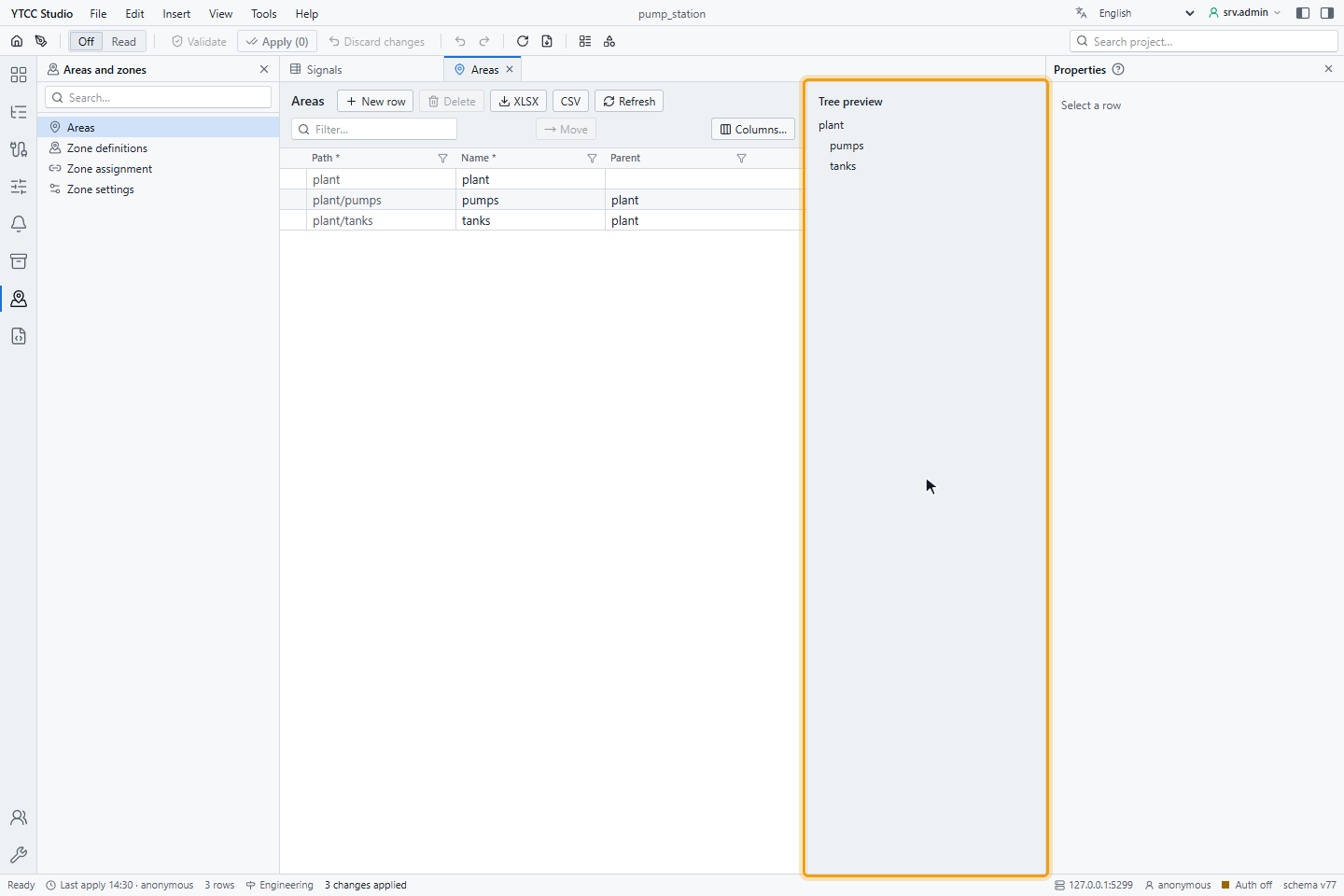
Click Apply, check the changes and apply them. The Tree preview on the right shows the areas indented under their parents.
3. Mind the naming rule
Each part of a new or renamed path may contain only lowercase letters, digits and _, with up to 64 characters.
Validation rejects other names, for example Plant 2.
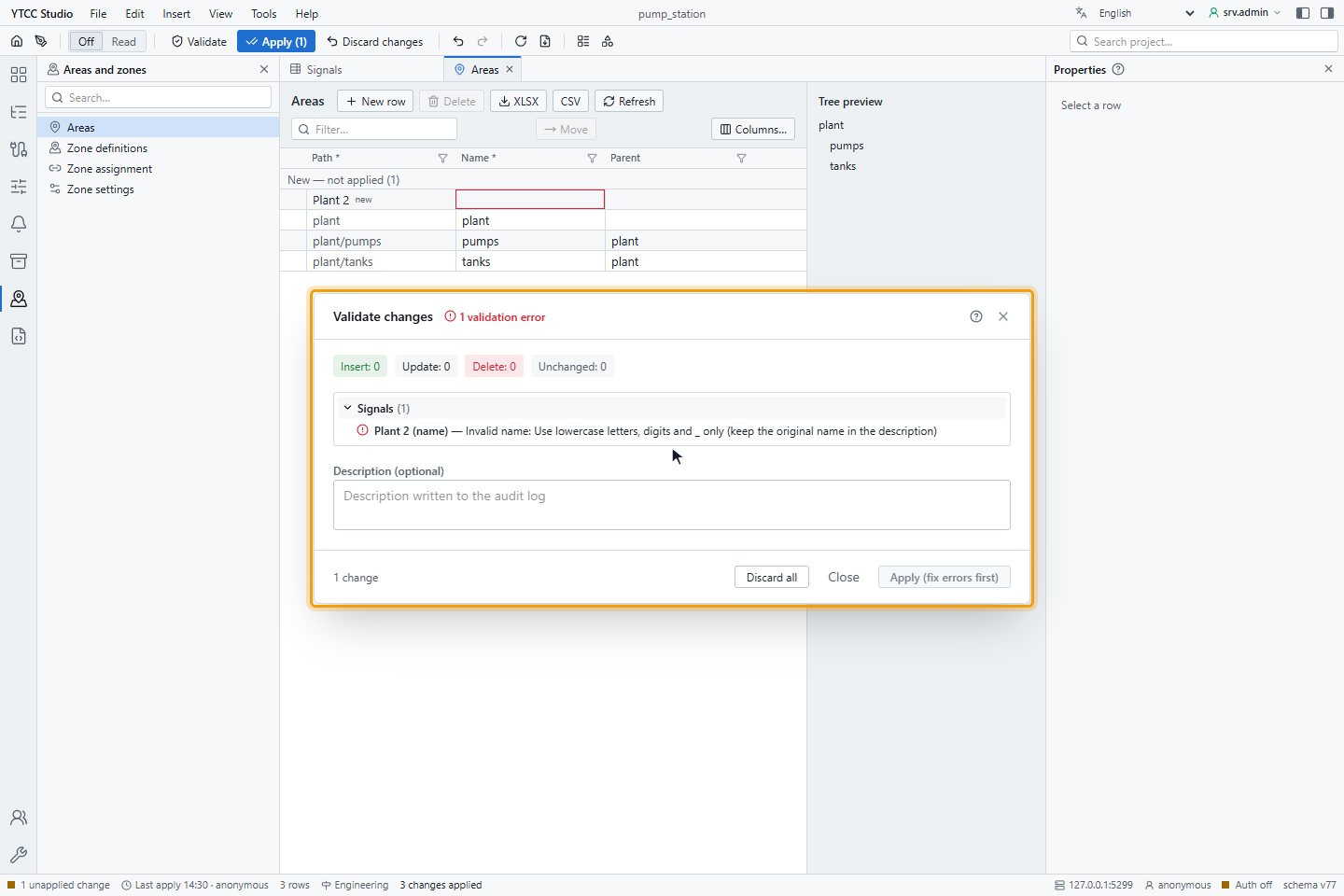
Click Discard all to drop the change.
4. Assign a signal to an area
Open Signals, select the signal and choose its Area in the General group of the Properties panel. Here
Pump1_Running goes to plant/pumps and Tank1_Level to plant/tanks. Apply the change.
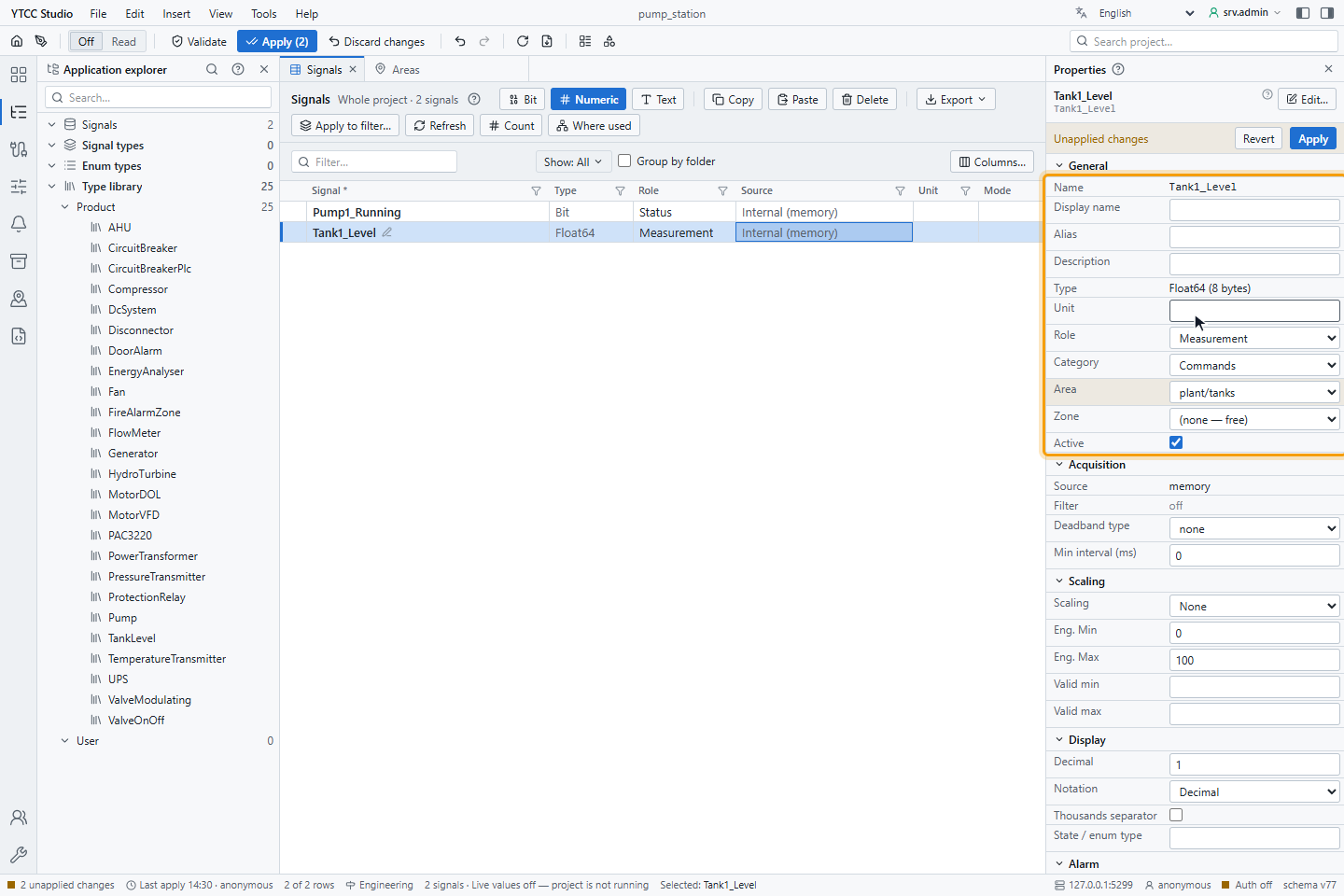
A device gets its area in the Area column of Drivers → devices.
5. Delete an area
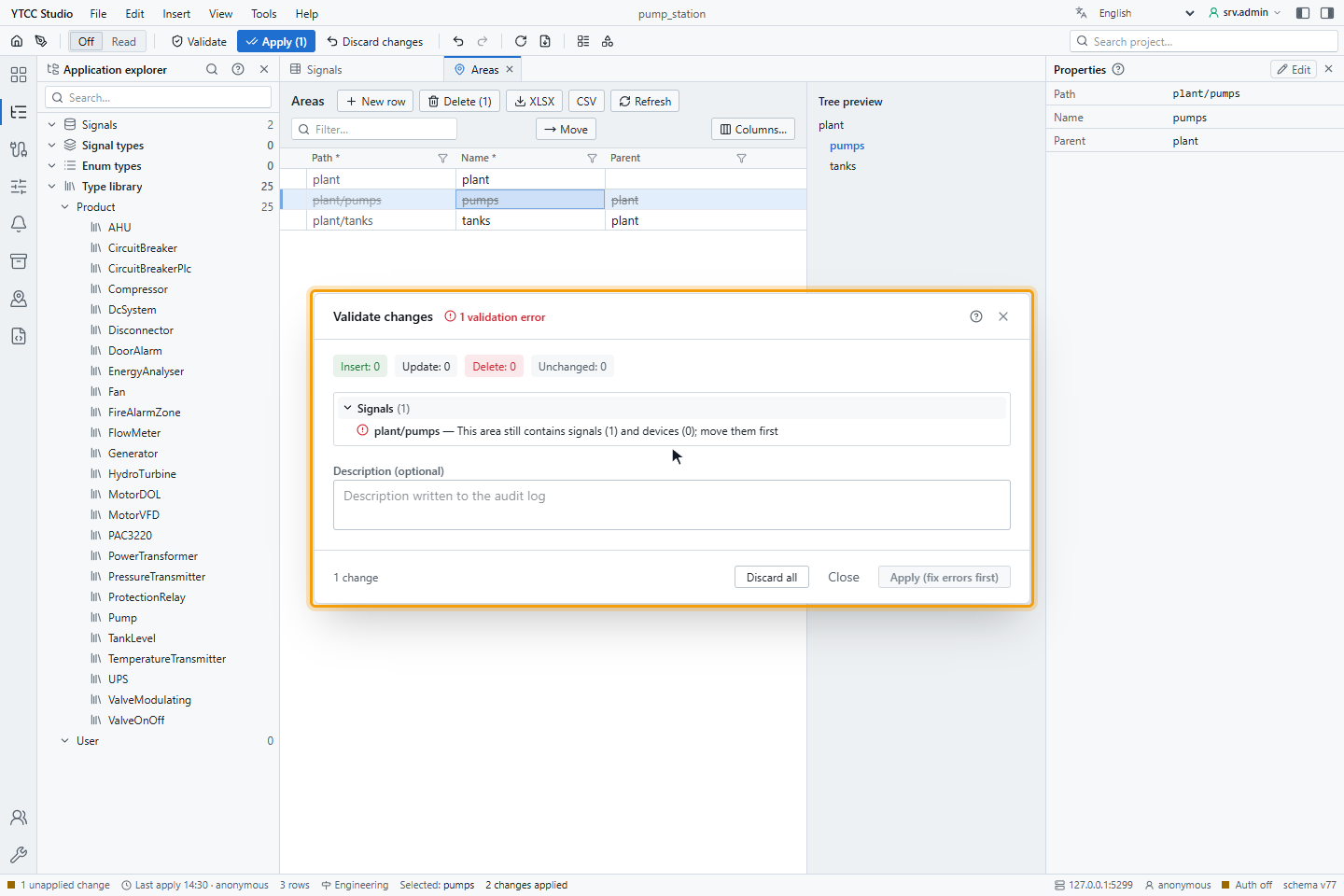
Select the area in Areas and click Delete. The area is removed when you apply, and only when it is empty. Validation refuses to delete an area that still has signals, devices or sub-areas.
Rename and move
- To rename an area, change its Name. The path follows. The Path of an existing area cannot be edited.
- To move an area, select it, click Move and pick the new parent. Leave the box empty to move it to the root. An area cannot be moved under itself or one of its sub-areas.
- Two areas under the same parent cannot have the same name.
Where areas are used
| Place | What the area does |
|---|---|
| Alarm list object | Areas in the Scope group limits the list to the areas and their sub-areas; see Put alarm objects on a screen |
| Alarm list on the runtime screen | The Area filter shows one area with its sub-areas; the Area column is hidden by default |
| Alarm history and the command log | Filter by area |
| Alarm counters | Each area has the system signals Alarms.Areas.<area>; a sub-area is under .Sub.<name>, for example Alarms.Areas.plant.Sub.pumps (see Alarm classes and groups) |
| Group rules | A group can collect the alarms of an area with the field area |
An area counts the alarms of its sub-areas too. An alarm of a signal without an area is counted only in
Alarms.Summary.
Good to know
- Older projects may contain areas with capital or Turkish letters. They stay editable, but new names follow the
naming rule. In the names of counter signals such letters are converted, for example
Ütou.