Open a project
A project can be opened in three work areas: the screen editor, the configuration editor and the runtime screen. This page shows how to open each of them from the home page. See Work areas for what each one is for.
Before you begin
- The project is in the Projects list on the home page.
Opening a project does not start it, and it does not stop another running project. The drivers of a project start only with Start on the home page; see Start, stop and restart a project. A project that is already running keeps running while you open it.
Steps
1. Open the project in the screen editor
Double-click the project in the Projects list. You can also select it and press Enter, choose Open (screen editor) in its right-click menu, or click Open → on its card in the Tiles view.
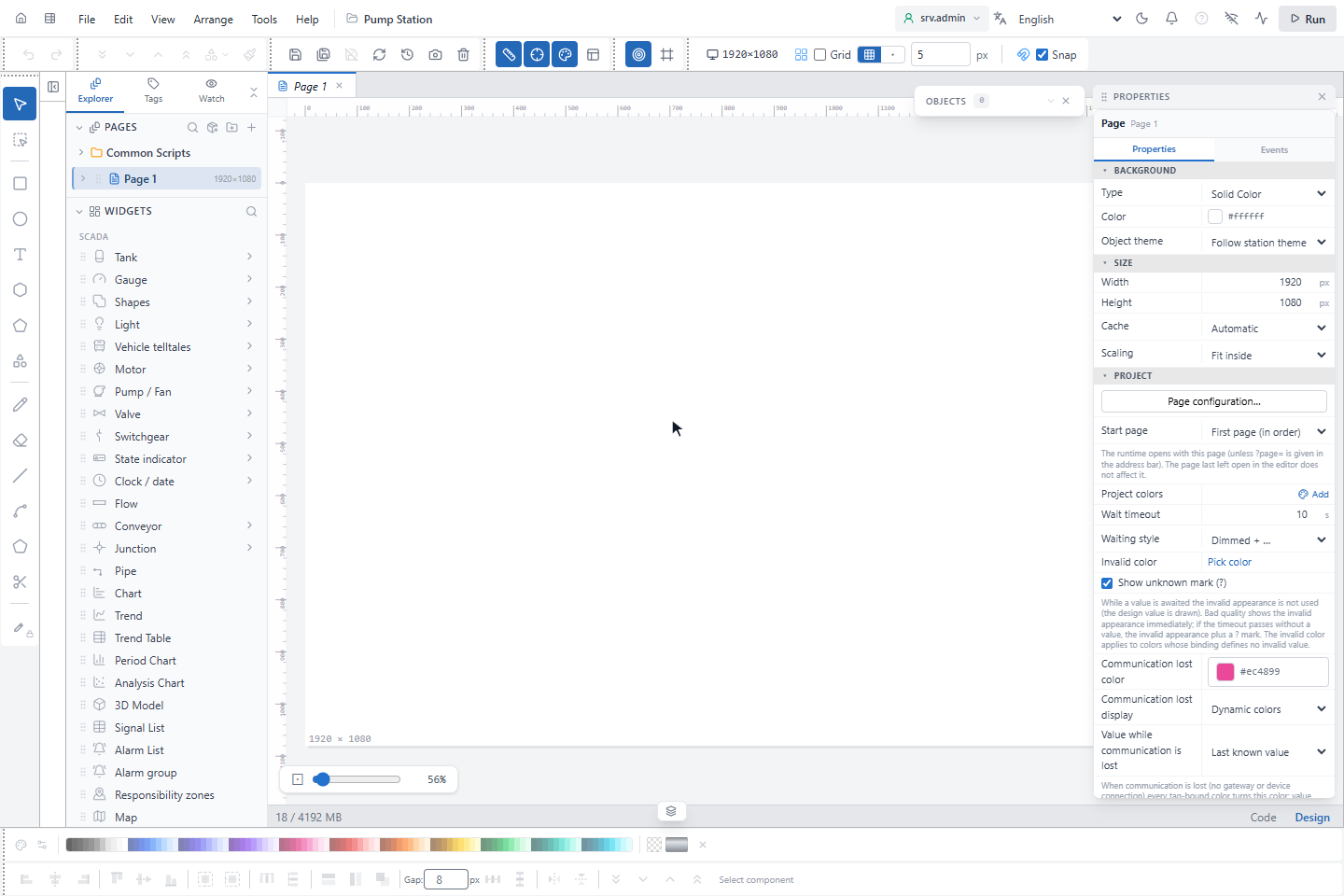
The screen editor opens in the same browser tab. The first time you open it in a project, it asks for an interface profile; see Menus, toolbars and interface profiles.
2. Open a project while another one runs
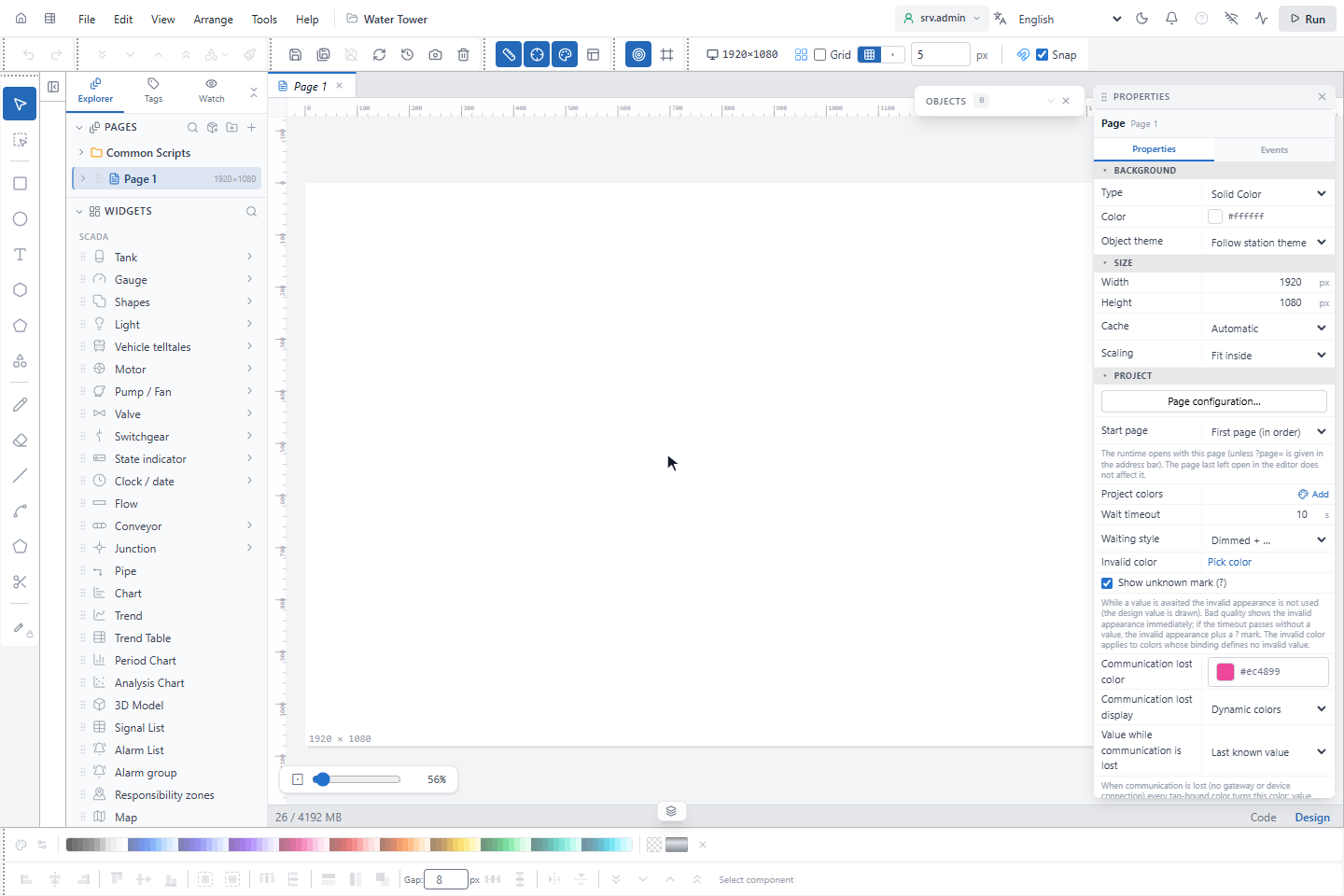
No confirmation is needed. When the chosen project is stopped and another project is running, the screen editor opens directly with the chosen project stopped, and the running project keeps running and communicating with the field. To run the chosen project instead, start it from the home page; see Start, stop and restart a project.
3. Open the configuration editor
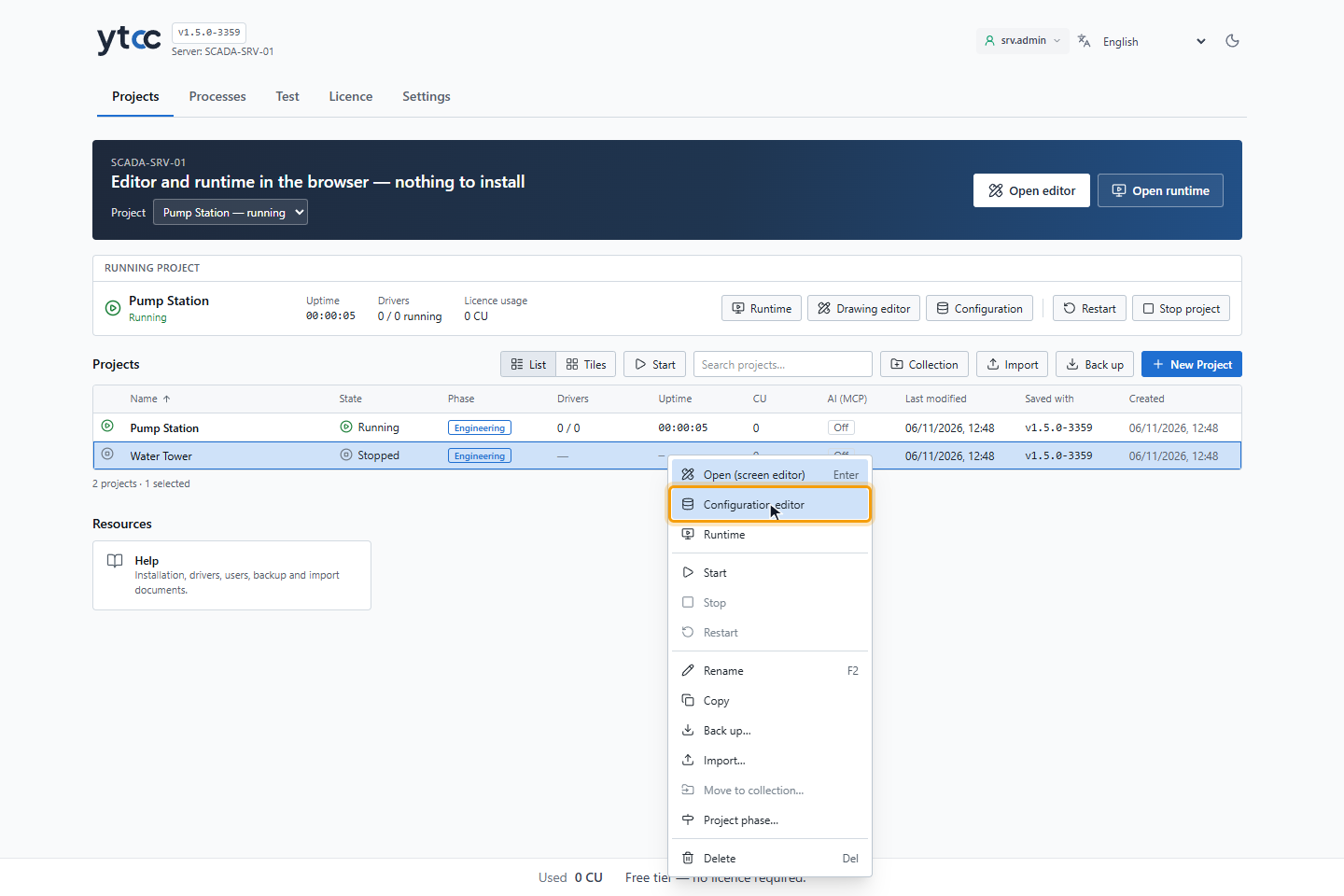
Right-click the project and choose Configuration editor. The configuration editor opens in its own browser tab. If that tab is already open for the project, YTCC switches to it.
4. Open the runtime screen
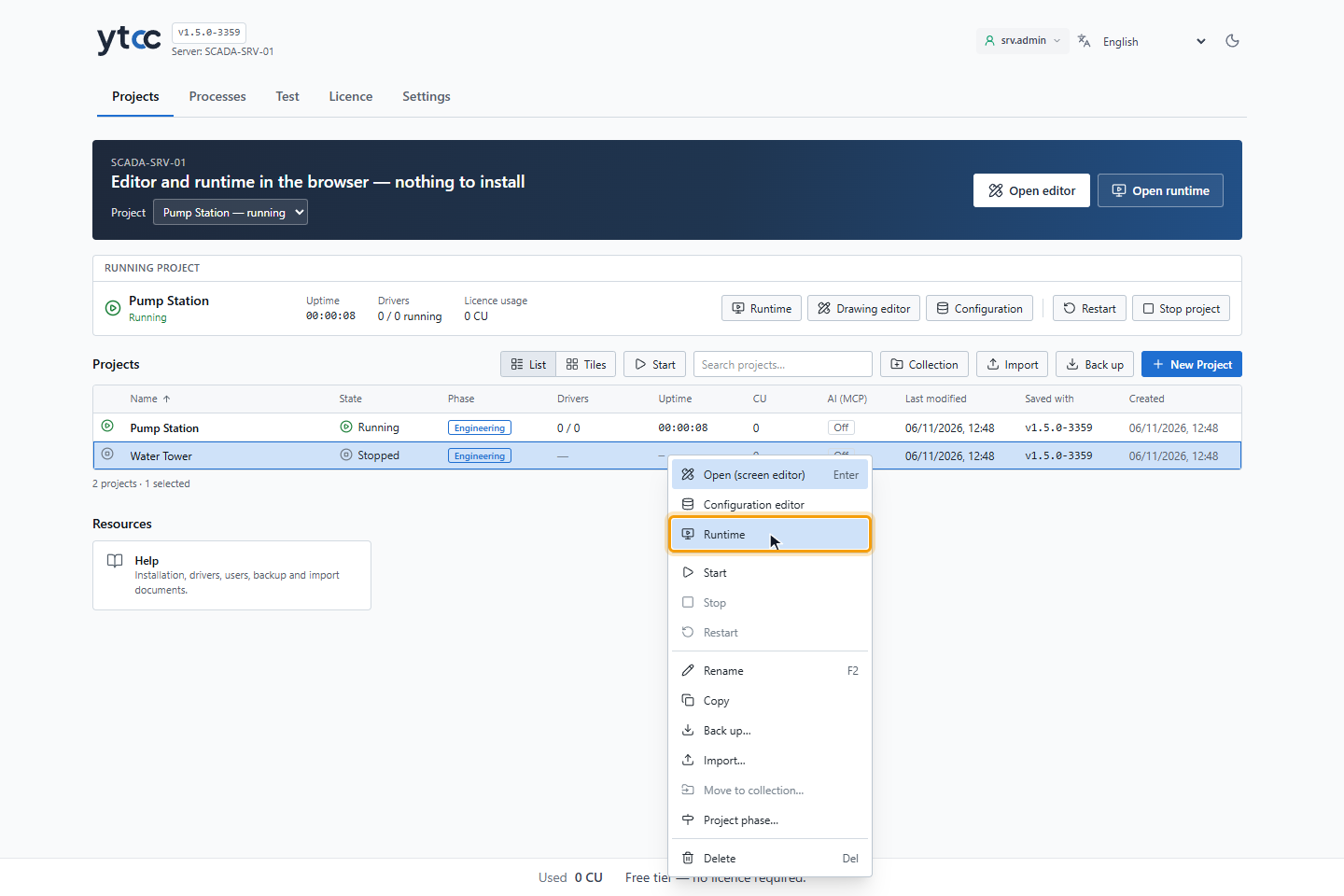
Right-click the project and choose Runtime. The runtime screen opens in a new browser tab.
Result
The project is open in the work area you chose. The screen editor replaces the home page in the current tab; the configuration editor and the runtime screen have tabs of their own.