Which version you are reading
The docs describe YTCC as it works in the version they were written for. If your YTCC is older or newer, some screens, names or steps can differ. This page shows where to find your version and how YTCC handles different versions.
Steps
1. Open About
On the home page, click Settings and then About under System. The section shows the Product version, the Installation, the Licence status, the Tariff version, the Components with the version of each YTCC program, the Contracts, the versions of the internal formats and interfaces, such as Configuration schema, Project format and Page format, and under Client the browser and time zone. Copy information at the bottom of the section copies all of it as plain text, for example for a support request.
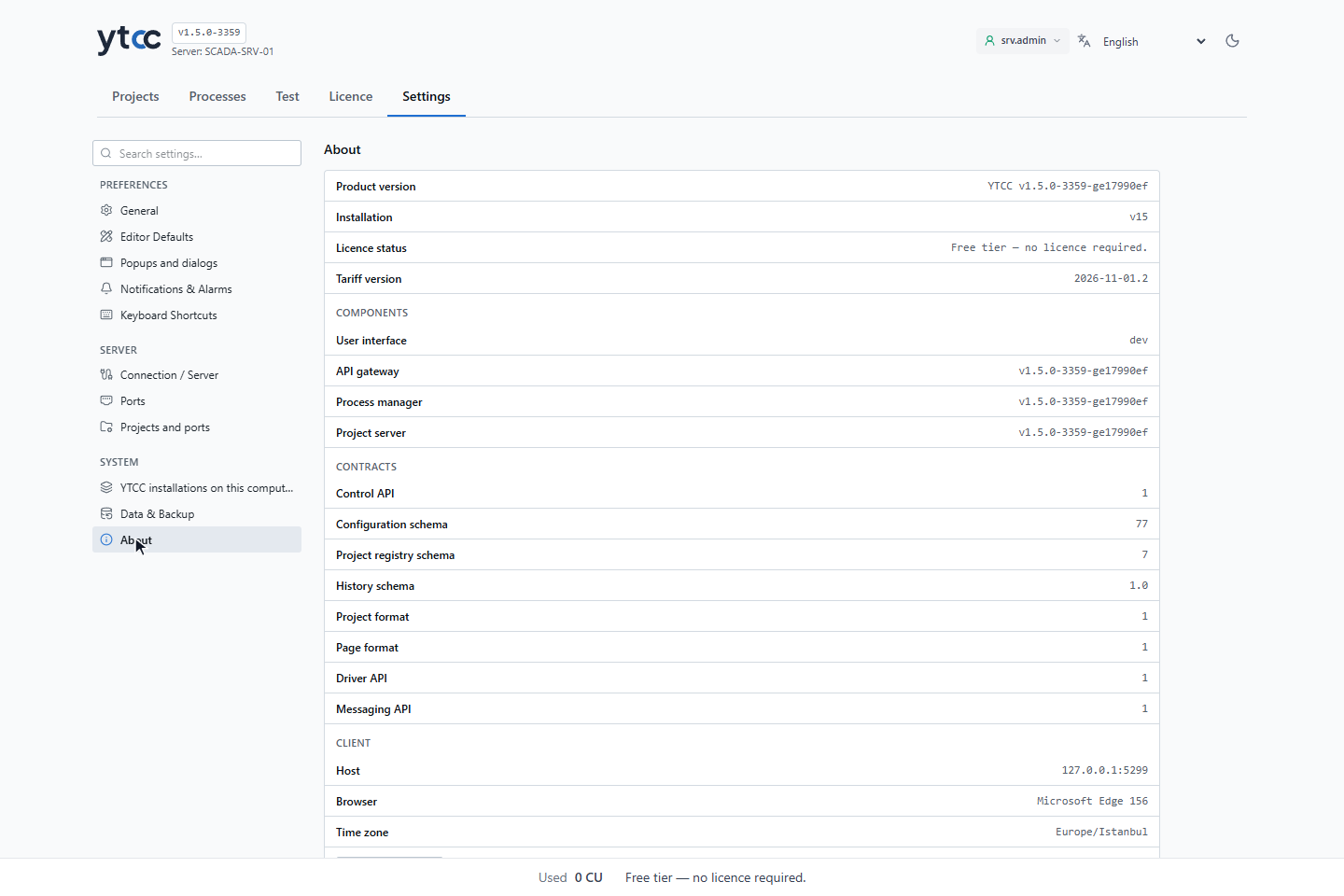
Installation is the version line of the installation, for example v15, not the product version; it reads
standalone installation when there is none. If the YTCC components do not have the same version, the section says
Component versions do not match and names them.
2. See the YTCC installations on this computer
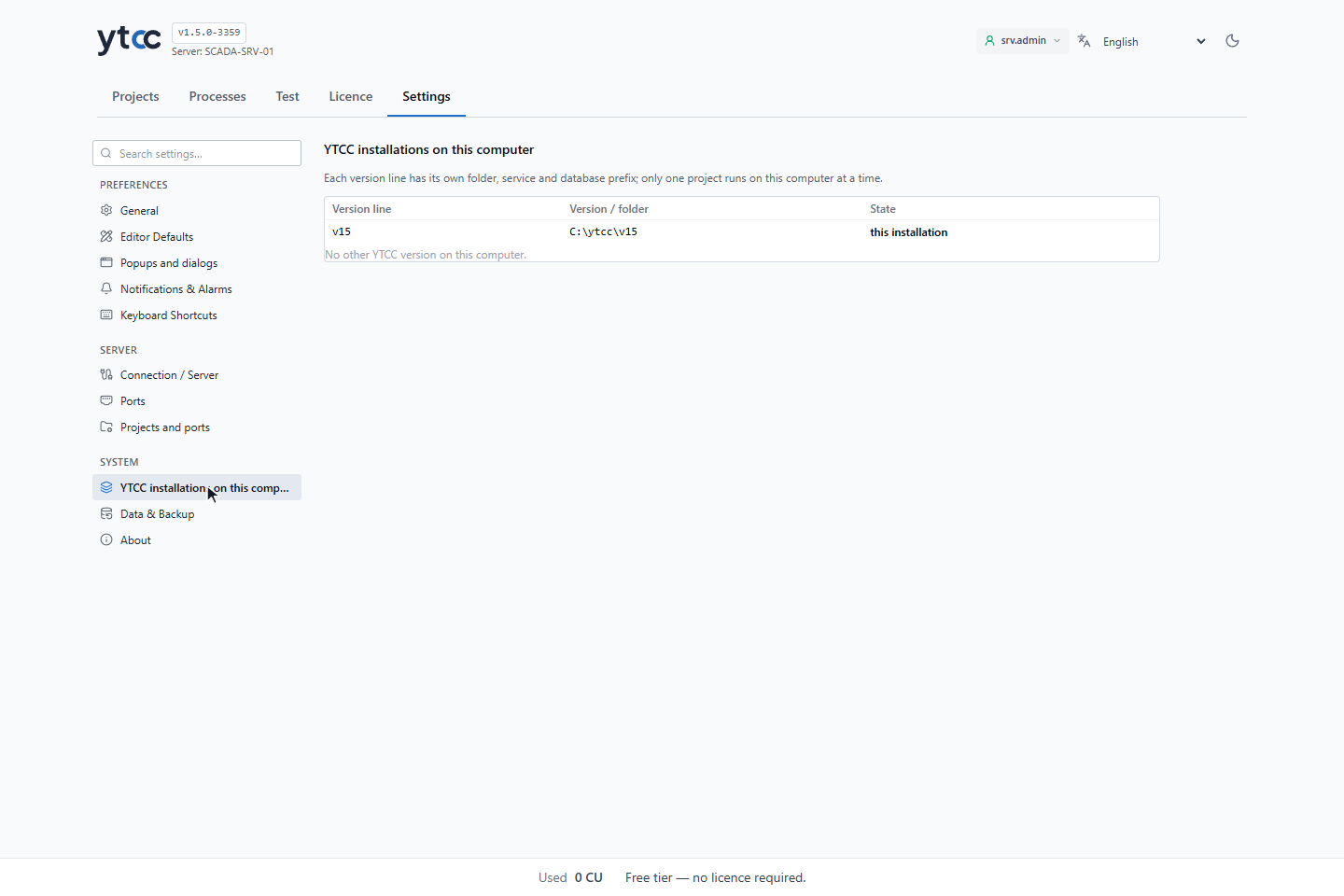
Click YTCC installations on this computer under System. The table lists the version lines registered on this computer with Version line, Version / folder and State; the line you are using is marked this installation. With only one installation, the section says No other YTCC version on this computer. This section is shown only while root is signed in.
Where else YTCC shows its version
- Home page: the version appears next to the YTCC name at the top, for example
v1.5.0-3359. - About in the screen editor, on the runtime screen and in the configuration editor shows the same content as Settings › About.
- Settings › Apps in Windows lists the version line, for example YTCC 1.5.
All parts of one YTCC installation carry the same product version.
Projects saved with another version
The Saved with column on the home page shows which YTCC version last saved each project.
- A project saved with an older version opens normally. If its database is older than the programs, the home page shows Upgrade needed; upgrade it as described in Databases and schema upgrade.
- A page saved with a newer version opens read-only in the screen editor. Its tab shows read-only. Update YTCC to edit it.
- A database that a newer version has already upgraded cannot be used by an older version. See Upgrade to a new version and roll back.
Good to know
- On the server,
scada-manager versionprints the same versions in a command prompt, andscada-manager version --jsonalso the database names of each project; see scada-manager commands.