Color database of the editor
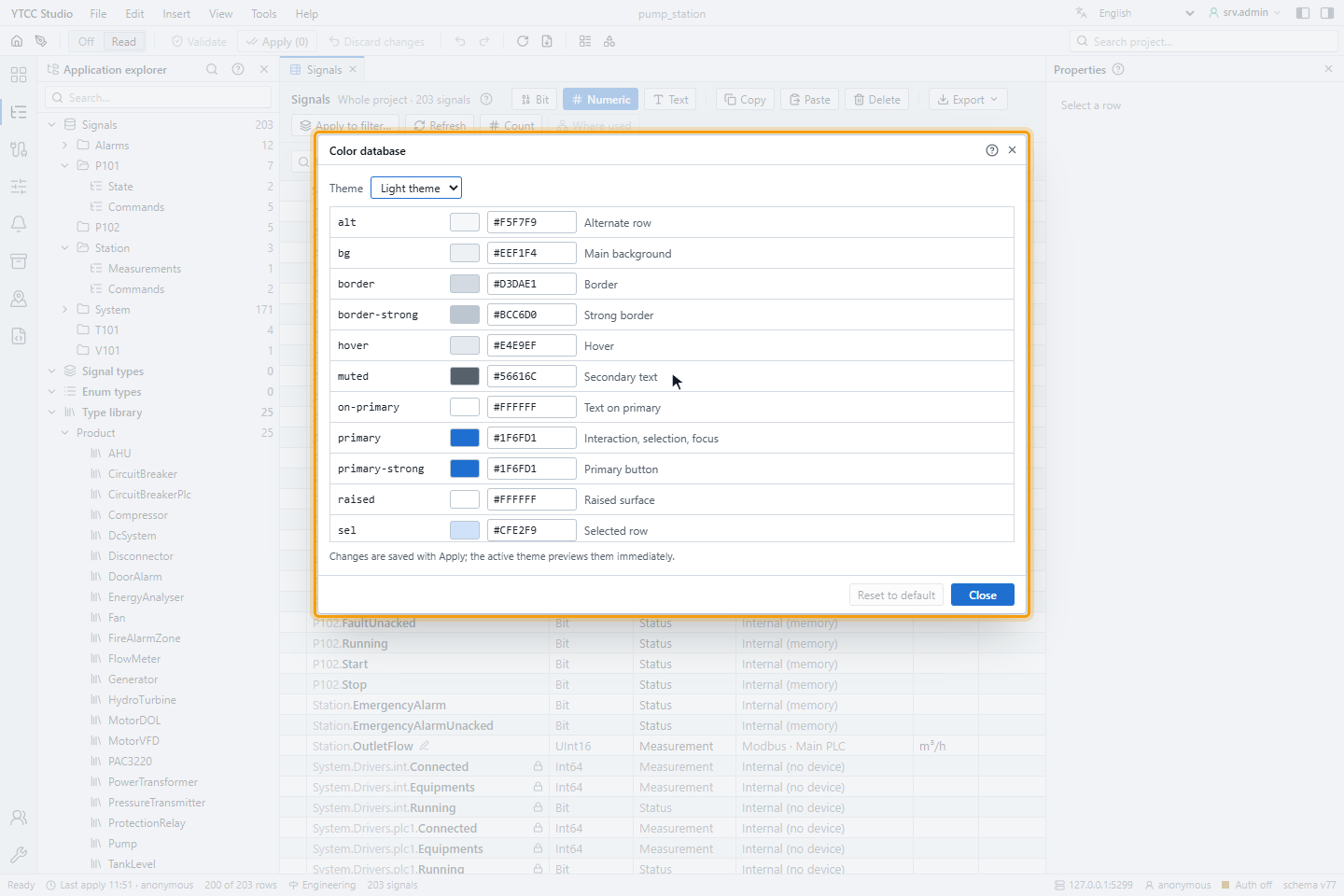
The Color database holds the colors of the configuration editor: backgrounds, borders, texts, the selection and the state colors of lists, each for the light and the dark theme. Change them, for example, to match the corporate colors or a control room with low light.
The colors of screens are not set here: screens use the project colors of the screen editor and the state colors of the project; see Colors and states.
Before you begin
- The configuration editor is open and you may edit the configuration.
Steps
1. Open the color database
Choose Tools › Color database…. Choose the Theme, Light theme or Dark theme. Each row shows the name of a color, its swatch, its value as #RRGGBB and what it is used for, for example muted — Secondary text or st-bad — Fault, active critical alarm, quality Bad.
2. Change a color
Click the swatch to pick a color, or type the value, here #C8C8C8 for the secondary text. The editor shows the change at once in the active theme. If a text color is too faint on one of the backgrounds, the rows show a warning with the contrast ratio, for example 1.5 : 1 < 4.5.
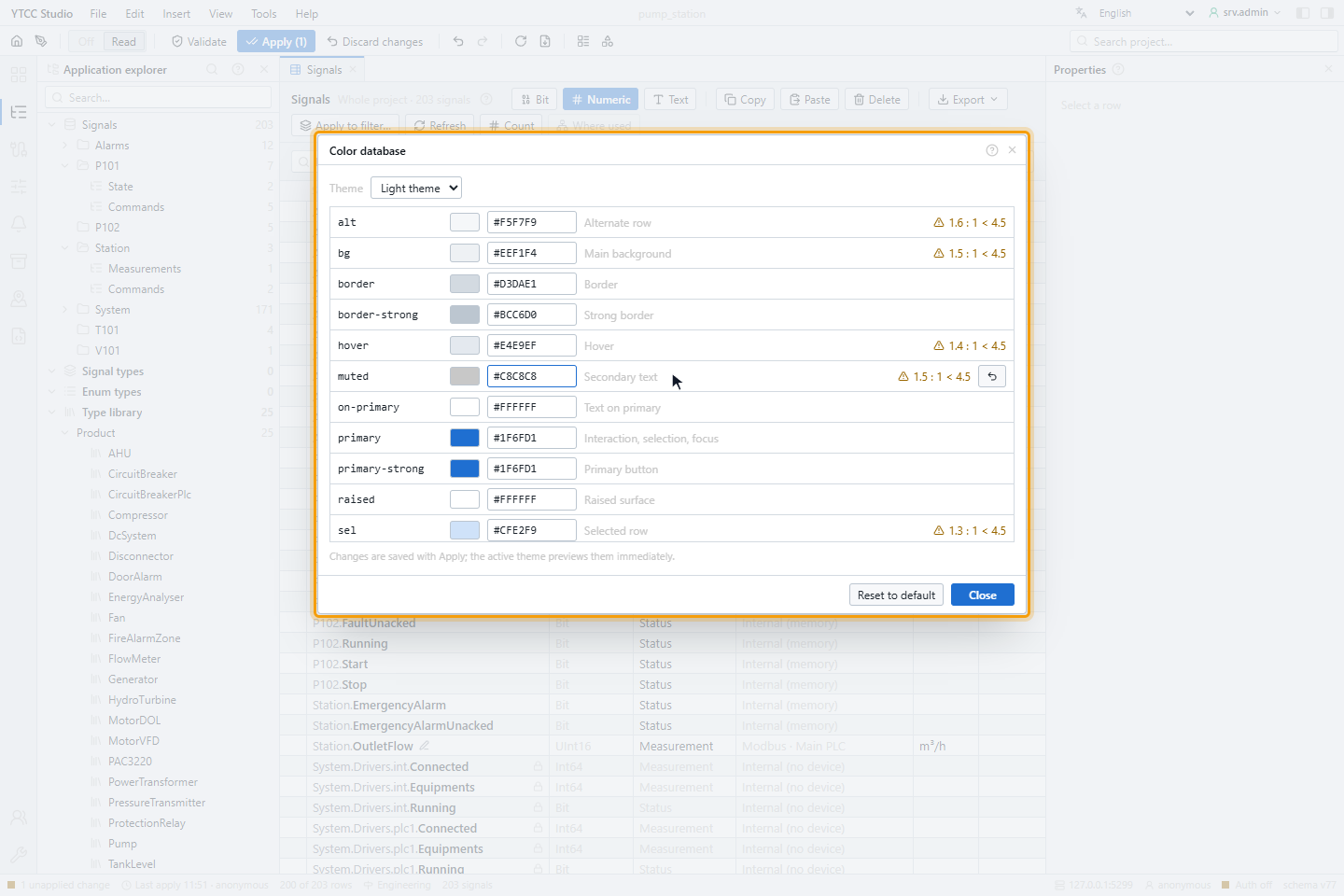
The warning follows WCAG: text needs a contrast of at least 4.5 : 1 to its background. It does not block the change.
Apply the configuration to keep the colors; Discard changes or the undo arrow of a row returns to the previous value, Reset to default to the colors that come with YTCC.
Good to know
- The preview is shown only for the active theme; switch the editor theme to see the other one.
- Built-in colors cannot be renamed or deleted.