Turn AI access on and create a key
An AI assistant reaches a project only when AI access is on in that project and the assistant has a valid access key.
This page turns access on in the project Pump Station, creates a key and shows where access can be turned off again.
Before you begin
- In a project with user login, you are signed in as root or as a user with the user management permission, and creating a key needs the AI access (MCP) permission of the user's profile; see Permissions. In a project without user login, access can be turned on or off without a permission; server keys are created by root.
- The project is in the Engineering phase if the assistant should change it. In a Commissioned project the assistant can only read.
Steps
1. Open AI access
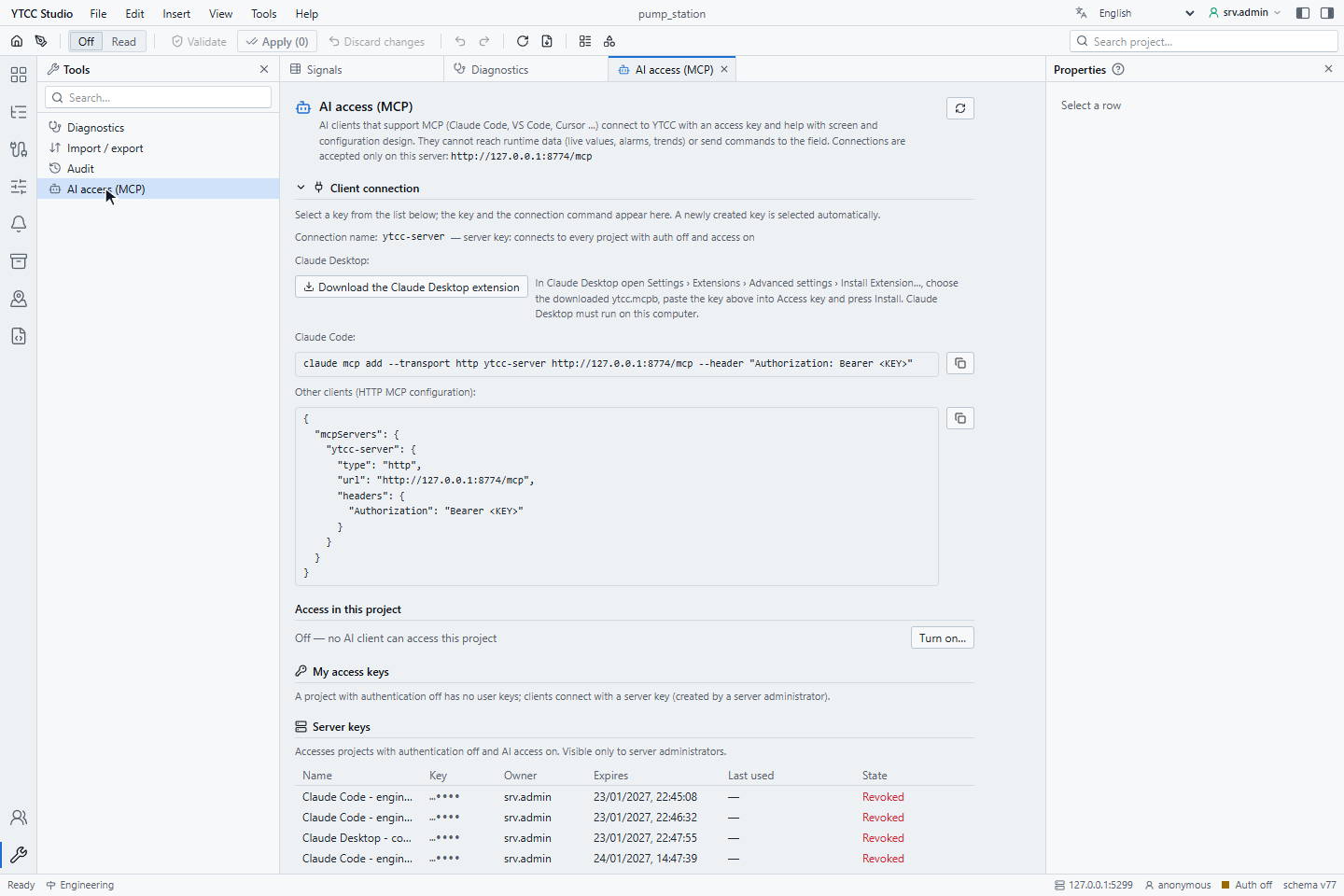
Open the project in the configuration editor, click Tools in the activity bar and then AI access (MCP). The
command palette also has AI access (MCP)…. The view explains what assistants can reach and shows the connection
address of this server, http://127.0.0.1:8774/mcp, the Client connection section, Access in this project and
the key lists.
2. Turn AI access on
Under Access in this project click Turn on…. The window Turn AI access on? says which data authorised clients read, pages, symbols, signal names, driver and equipment definitions, that this data is sent to the connected AI provider, and that there is no runtime data and no command. Click Turn on.
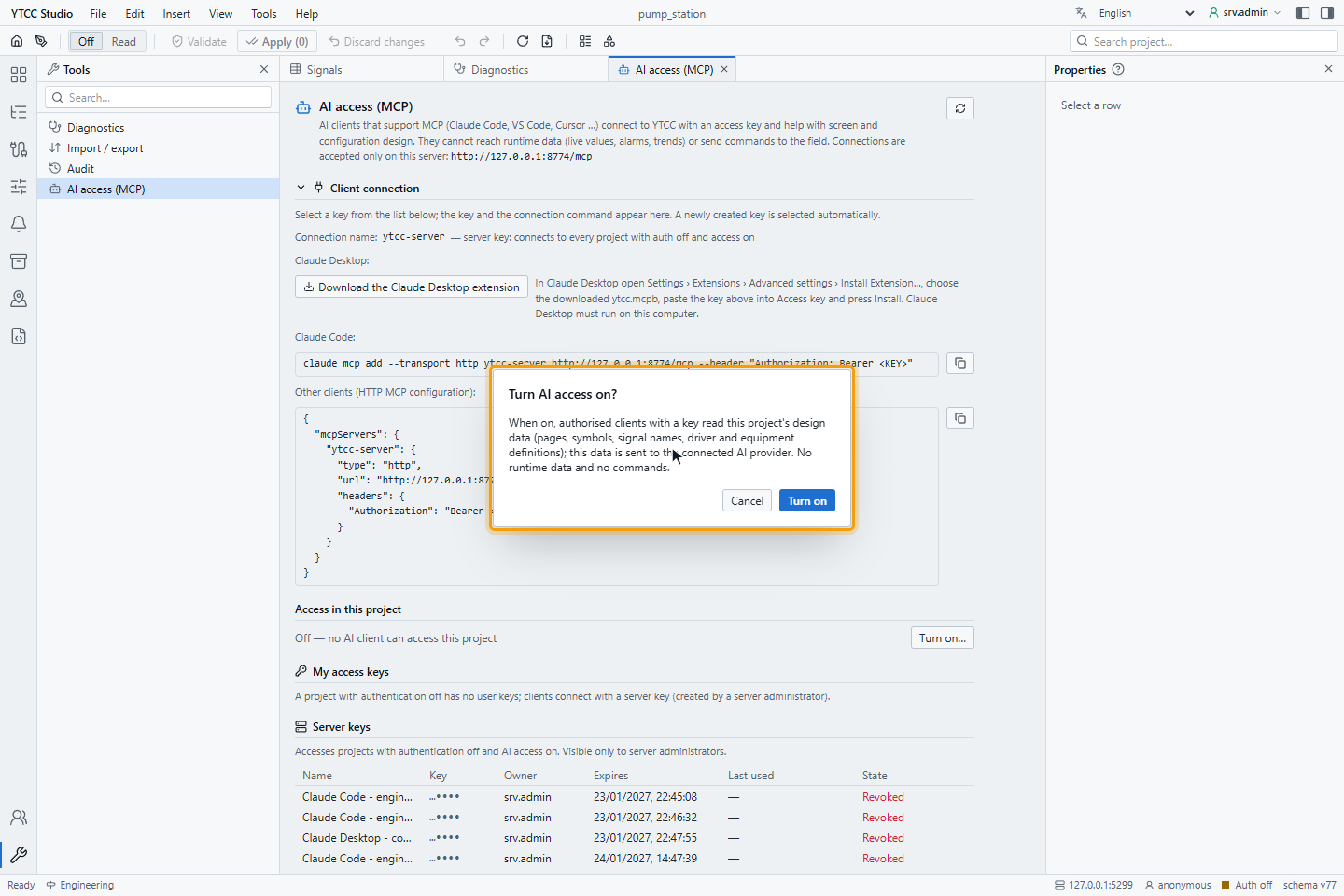
The state then reads On — authorised clients with a key can read this project's design. When you turn access off again, clients lose access at their next request.
3. Create an access key
Type a client name, for example Claude Code - engineering laptop, choose the Validity, 7, 30, 90 or 365 days
(default 90), and click Create key. The new key is selected at once and appears under Client connection, masked.
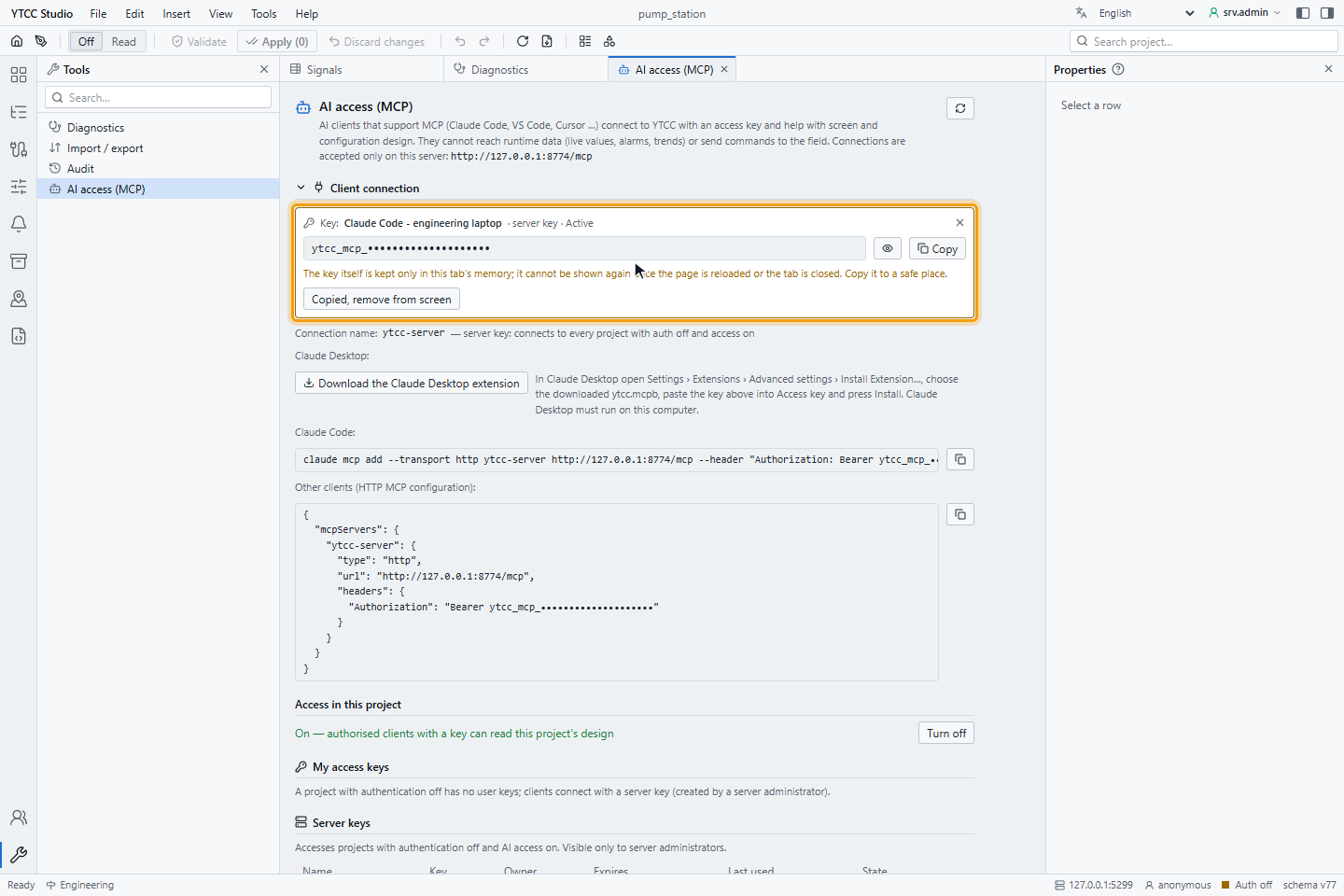
The key itself is kept only in the memory of this browser tab. Click the eye button to show it and Copy to copy it, then paste it into the assistant (see Connect an AI assistant) or a password manager. Once the page is reloaded or the tab is closed, the key cannot be shown again; the server keeps only a hash of it.
4. Copy the key and remove it from the screen
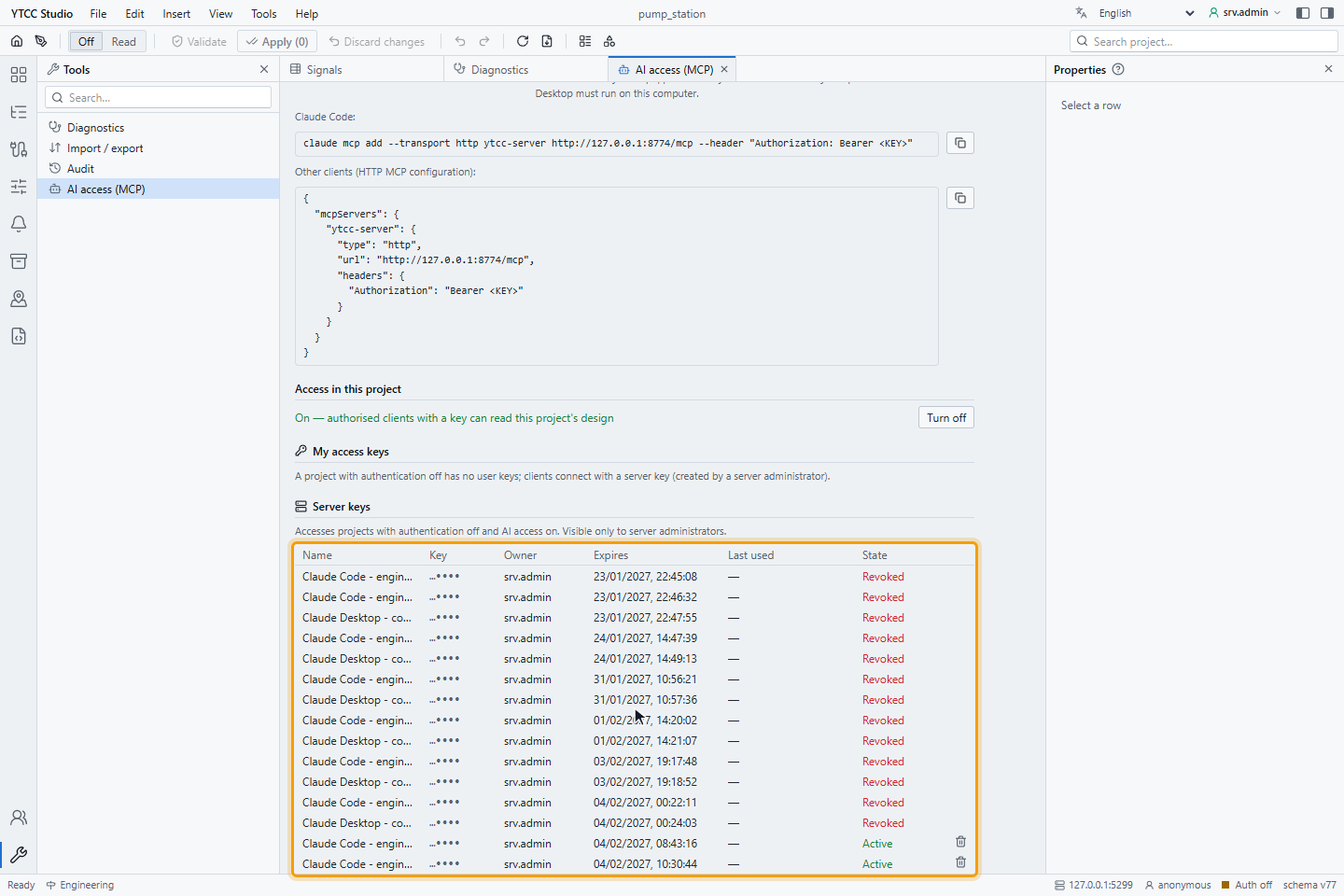
Click Copied, remove from screen. The key leaves the screen and stays in the key list with its name, the last four characters, Expires, Last used and State. The images in this guide hide those four characters.
| Action | How | Effect |
|---|---|---|
| Use a key in the connection section | Click its row. | The connection section shows its connection name. The key itself is not shown again. |
| Regenerate | Select the key, then Regenerate key…. | A new key with the same name and validity; the old key stops at once. Update the assistant with the new key. Only the owner of the key can do it. |
| Revoke | The bin button of the row, then Revoke. | Assistants connected with this key lose access at once. It cannot be undone. The owner of the key or a user with the user management permission revokes a project key; a server administrator revokes a server key. |
5. See AI access in the project list
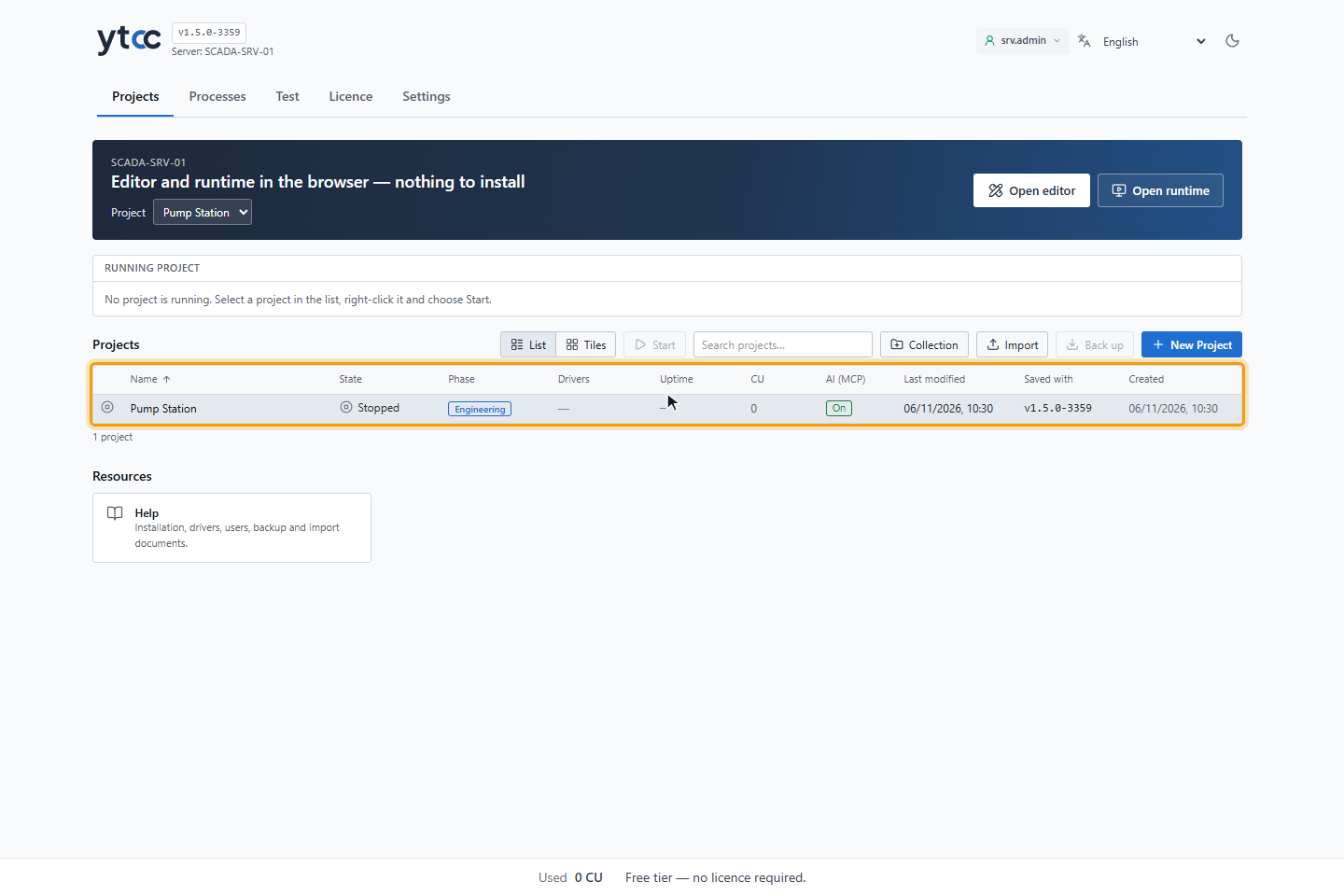
On the home page, the list view of Projects has the column AI (MCP). It shows whether access is on in each project. Root can click it to turn access on or off, with the same confirmation as in the configuration editor.
Server keys and user keys
| Project | Keys |
|---|---|
| Without user login | Server keys, created by a server administrator (root). A server key reaches every project without user login that has AI access on. Only server administrators see this list. |
| With user login | Each user creates keys under My access keys; a project administrator sees all of them under Project keys. A key works with the design permissions of its owner and stops when the owner is disabled or loses the permission. |
A project can have up to 50 active keys and the server up to 20 server keys.
Result
AI access is on in Pump Station, and you have an access key. Continue with
Connect an AI assistant.
Good to know
- The audit log records MCP key created, MCP key revoked and AI access changed; see Review the audit logs.
- A key that expires is shown with the state Expired; create a new one.
- Last used is updated at most once a minute.