Animation
Animation shows a state by movement: an object blinks, turns, fades or disappears. Every animation property can have a fixed value or follow a signal, like the other properties (see Bind signals).
Before you begin
- A page is open in the screen editor.
- For a bound animation the signal exists; here the bit signal
Pump_Running.
Steps
1. Define a project color
Colors that carry a meaning, such as an alarm color, are best kept as project colors. Click an empty part of the
page; under Project click Add (or Edit when colors exist) next to Project colors. Add color adds
a row with a Name, a Light theme and a Dark theme value and a Description; here alarm_high.
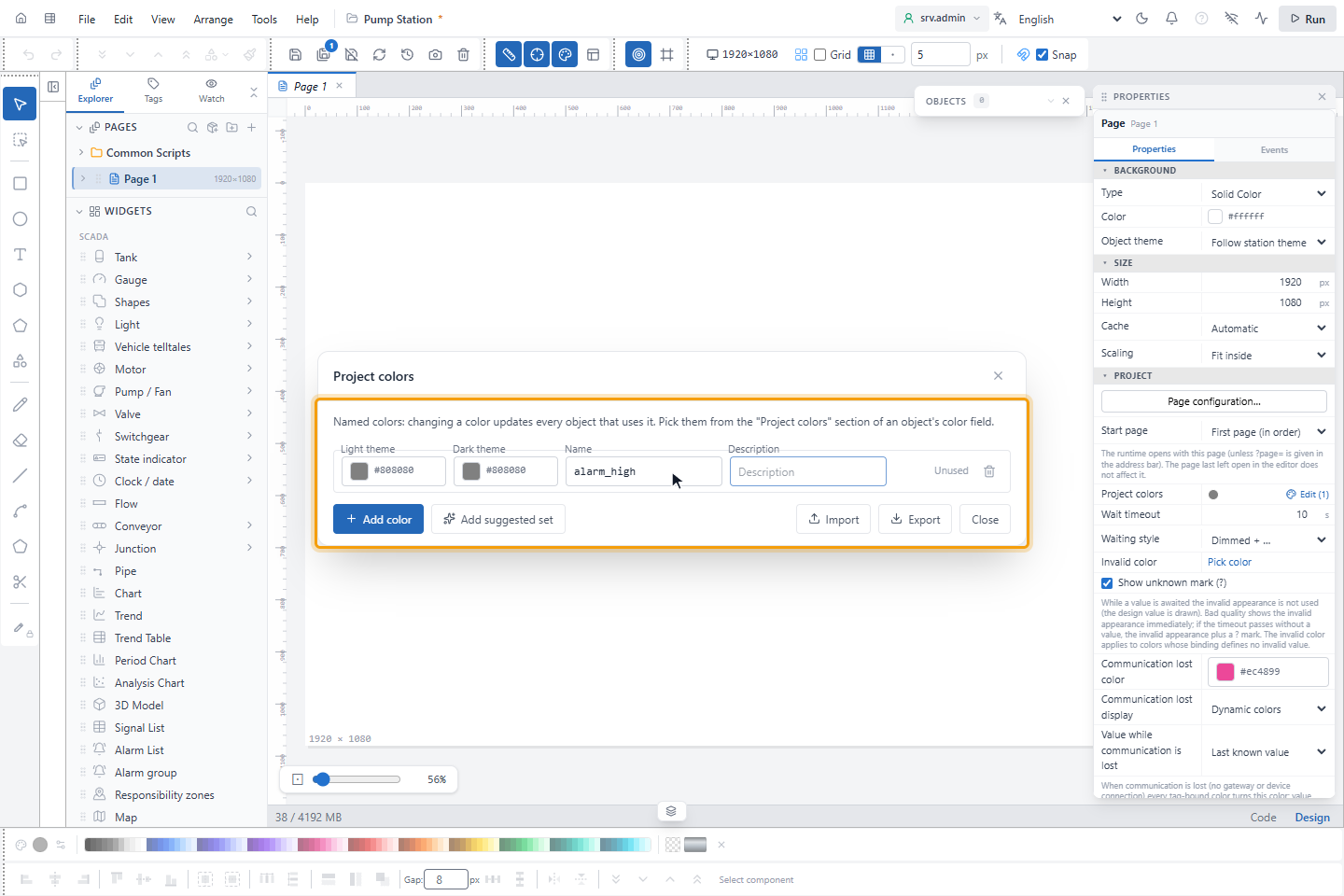
Objects that use a project color change with it. Each row shows how often the color is used. Deleting a used color asks whether to move its objects to another color or to turn it into a fixed color. Add suggested set, Import and Export exchange color sets between projects.
2. Make an object blink
Select the object and tick Blink in the Animation group. Speed (Hz) sets how often it blinks, here 2; empty uses the Blink rate of the project (1 Hz by default). Blink Color sets the second color: the object changes between its own color and the blink color. Without a blink color the object turns grey and faint in the off phase.
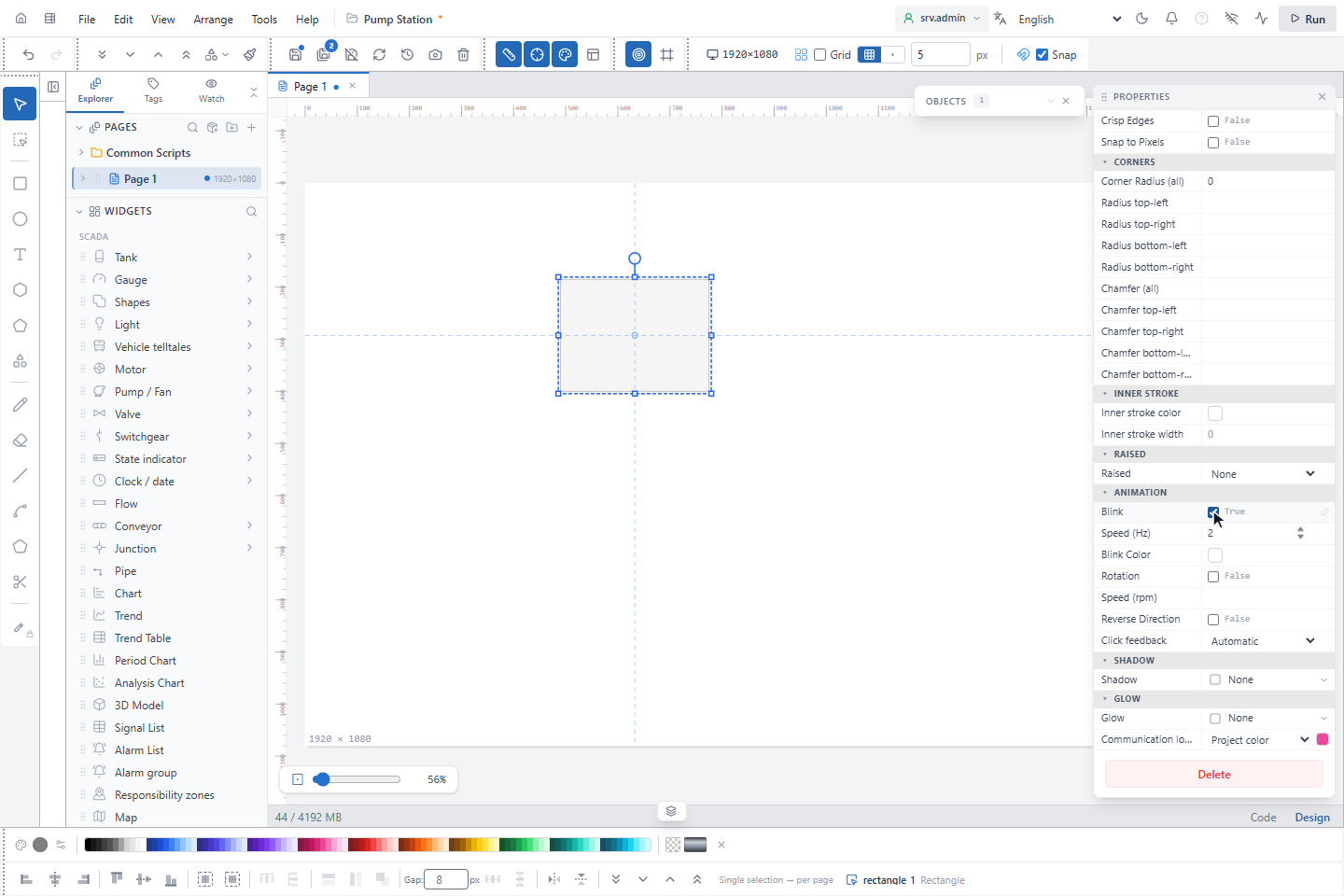
All objects that blink at the same speed blink together.
3. Turn an object
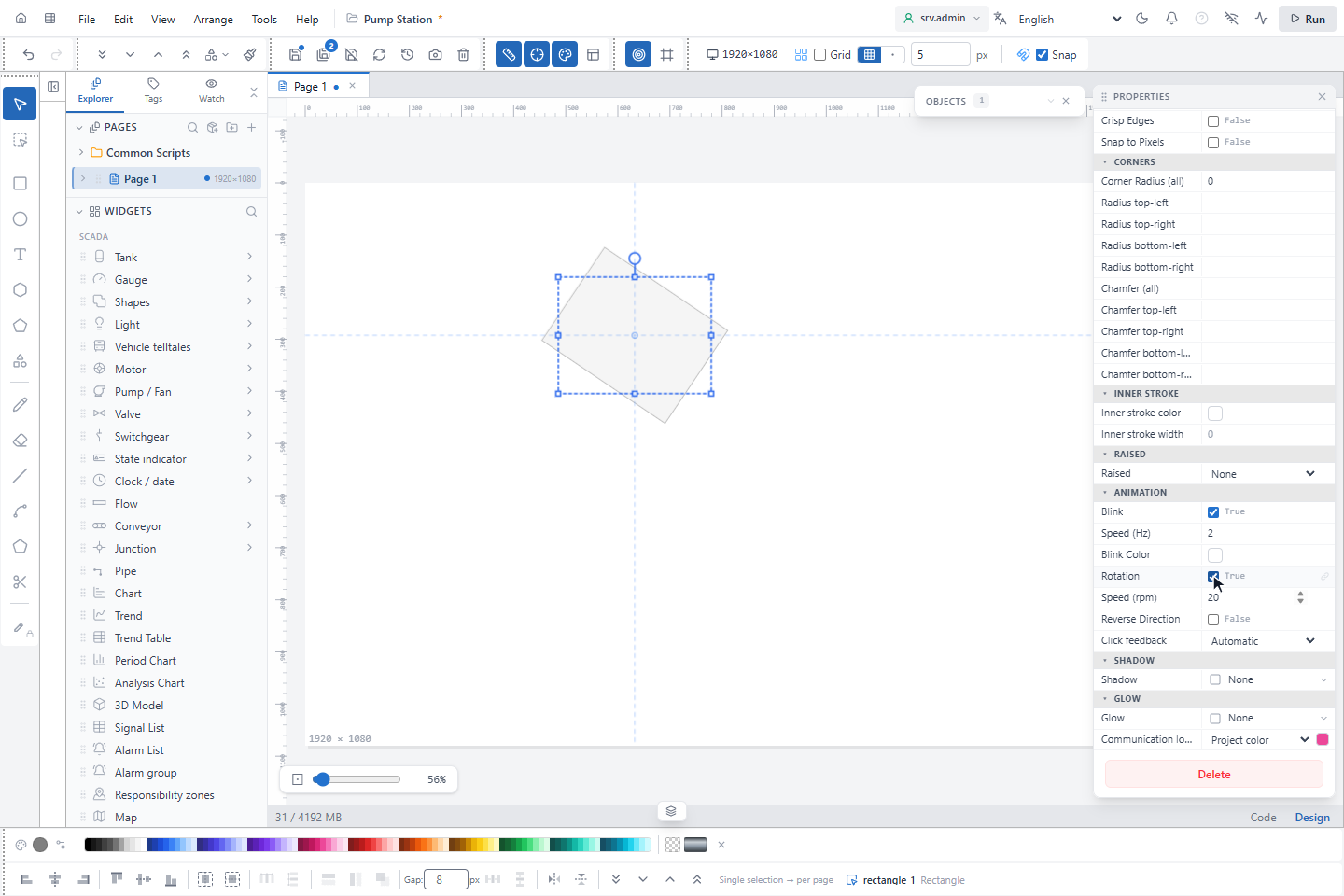
Tick Rotation and set Speed (rpm), here 20 (30 by default). Reverse Direction turns it the other way. The object turns around its pivot, set in the 3 × 3 grid at the top of the properties (Middle Center by default). Rotate (°) in the Transform group sets a fixed angle instead.
4. Bind the animation to a signal
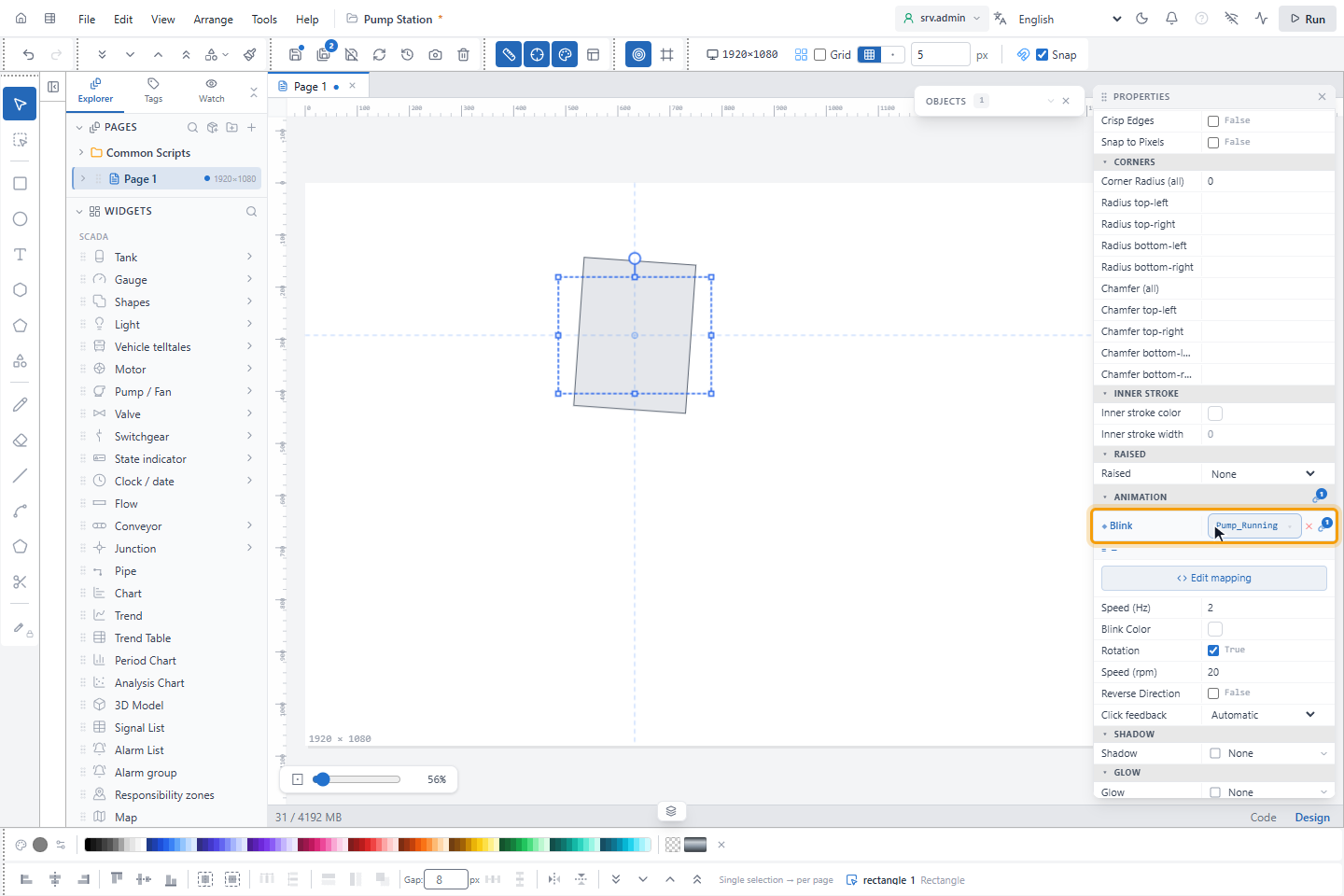
Hover over Blink and click Bind to tag, choose the signal, here Pump_Running, and click Bind. The object
blinks while the signal is true. Rotation, Visible, Opacity and Rotate (°) are bound the same way;
Opacity is 0–100 % on the screen.
Project settings for animation
Click an empty part of the page; the settings are under Project:
| Setting | Values |
|---|---|
| Blink rate | 0.5–4 Hz, default 1 Hz; used when an object has no Speed (Hz) |
| Color-only state | Warning (default) or Error: how the project check reports a color bound to a signal without a second cue (text, icon, shape, blinking, visibility or rotation) |
The check also reports a blink color that is not a project color. Its results are in the list of problems of the script check.
Good to know
- Operators can turn blinking off for themselves with Turn blinking off in the session menu of the runtime screen; alarm acknowledgement is not affected.
- Color should not be the only cue of a state: add text, an icon or a shape (ISA-101).
- Visible off hides the object on the runtime screen; in the editor it is shown faint while live values are simulated.